


























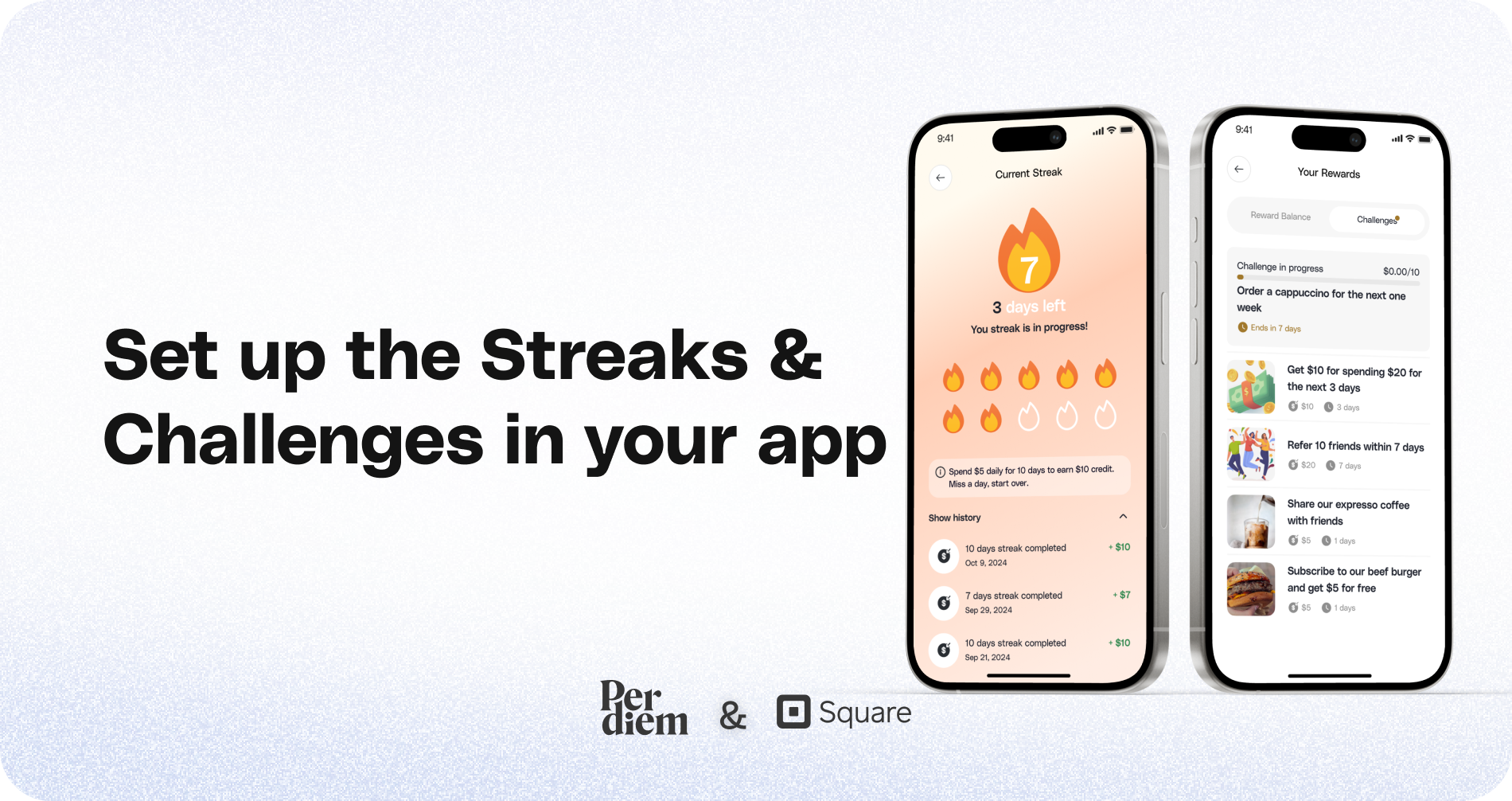
Set up the Streaks & Challenges in your app
Instructions
- Start by logging into your Per Diem merchant dashboard.
- Click on the Marketing tab from the left-hand menu and select Rewards from the dropdown options.
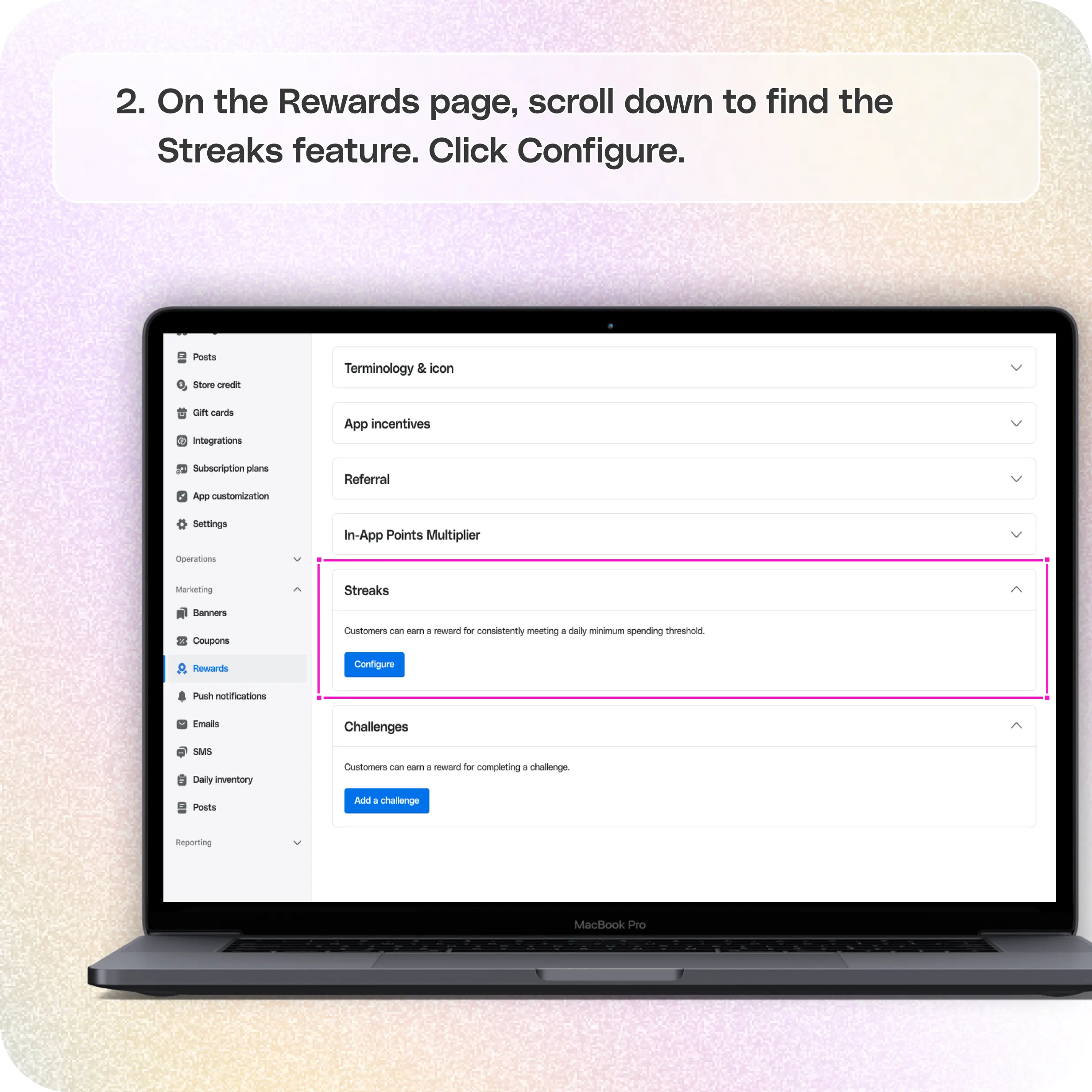
- On the Rewards page, scroll down to find the Streaks feature. Click Configure to begin setting up rewards for customers who consistently meet a daily spending threshold.
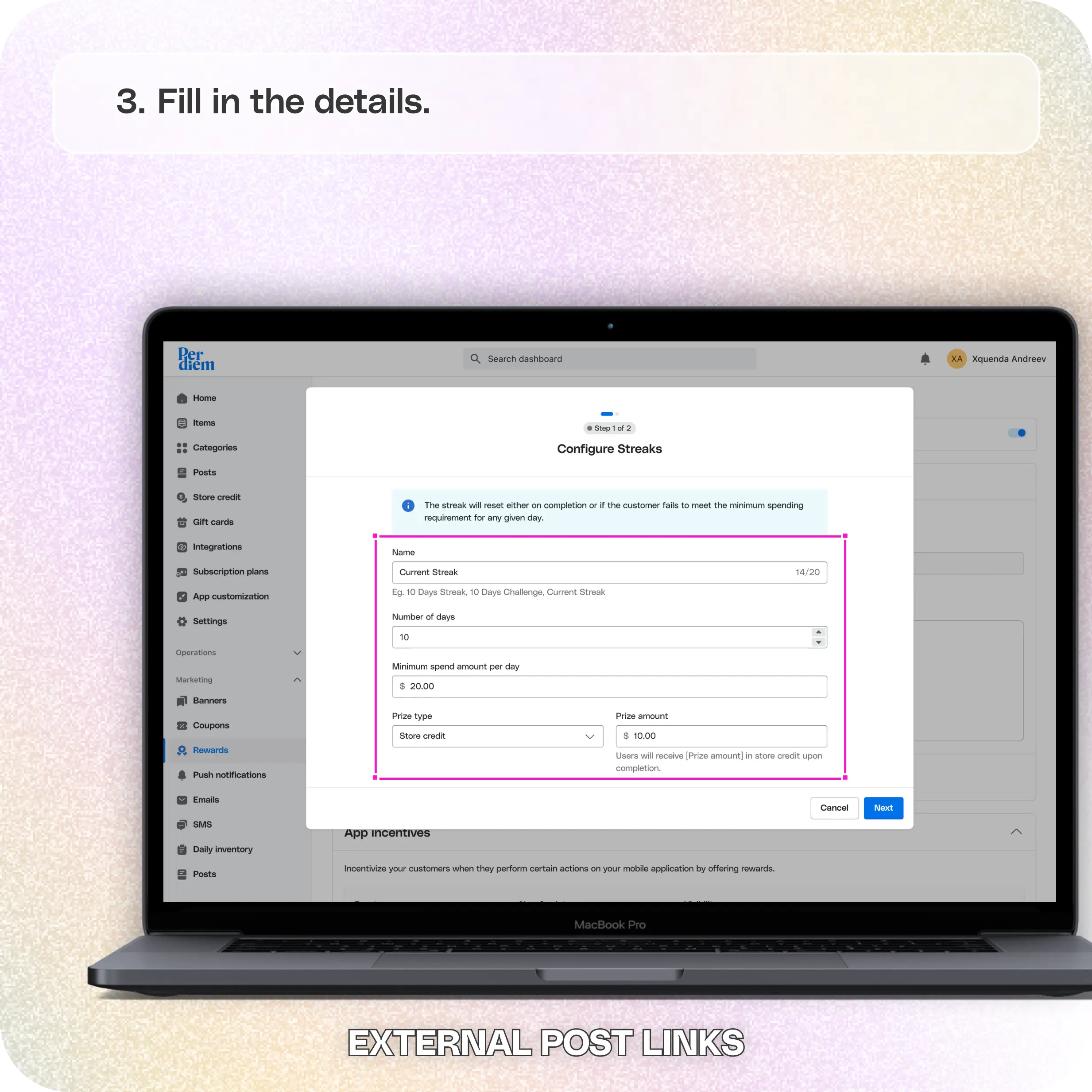
- Name your streak: Give it a catchy name to attract customer attention.
- Set the number of days: Define how many consecutive days customers need to meet the daily spending goal to earn the reward.
- Set the minimum spend amount per day: Specify the minimum purchase amount required for each day.
- Choose the prize type: Select between Store Credit or Loyalty Points and set the prize amount.
- Hit Next to proceed.
- Write a compelling post title and description.
- Add a CTA and link it with the reward details.
- Upload a visual image for the post.
- Schedule the post to align with the streak duration.
- If you prefer not to create a post, select No Post at this step and hit Save.
- For Challenges, Click on Add a Challenge.
- Title and Description: First, give your challenge a catchy title and write a description that clearly explains the task to your customers.
- Choose Challenge Type: From the Challenge Type dropdown, select the criteria on which you want to reward customers. For example, you could base the challenge on completing a minimum spend amount or any other task
- Set the Duration: Choose how long customers have to complete the challenge.
- Minimum Spend Amount: Set the minimum spend amount required for the customer to complete the challenge.
- Prize Amount: Specify the reward customers will earn once they complete the challenge.
- Upload an Image: Add a visual image to make the challenge more attractive.
- Click Next to save and implement your challenge.
Encourage customers to order consistently and earn exciting rewards
Still require support?
Contact support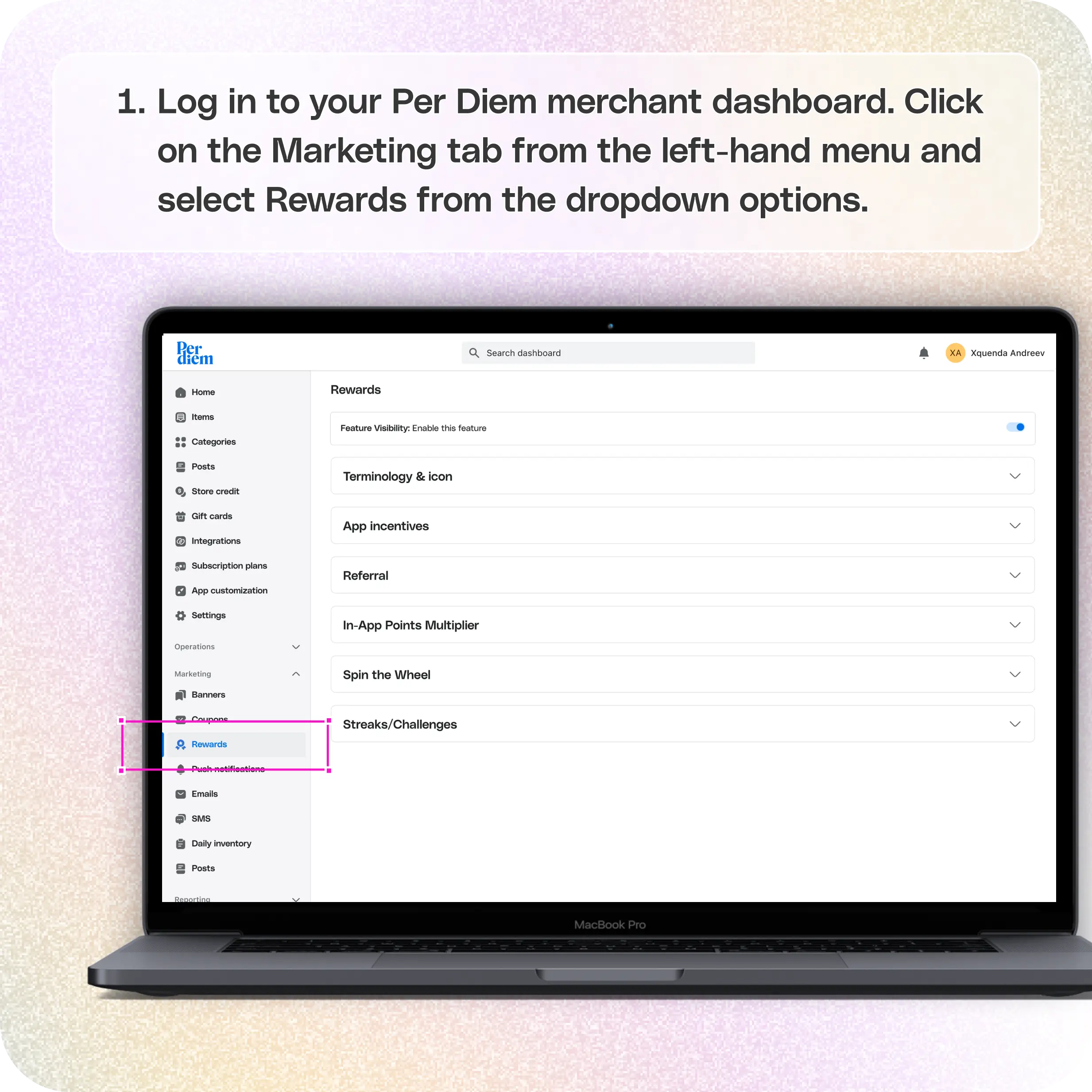
Log in to Your Merchant Dashboard
Start by logging into your Per Diem merchant dashboard.
Go to the Marketing Tab
Click on the Marketing tab from the left-hand menu and select Rewards from the dropdown options.
Go to Streaks
On the Rewards page, scroll down to find the Streaks feature. Click Configure to begin setting up rewards for customers who consistently meet a daily spending threshold.
Fill in the Details
- Name your streak: Give it a catchy name to attract customer attention.
- Set the number of days: Define how many consecutive days customers need to meet the daily spending goal to earn the reward.
- Set the minimum spend amount per day: Specify the minimum purchase amount required for each day.
- Choose the prize type: Select between Store Credit or Loyalty Points and set the prize amount.
- Hit Next to proceed.
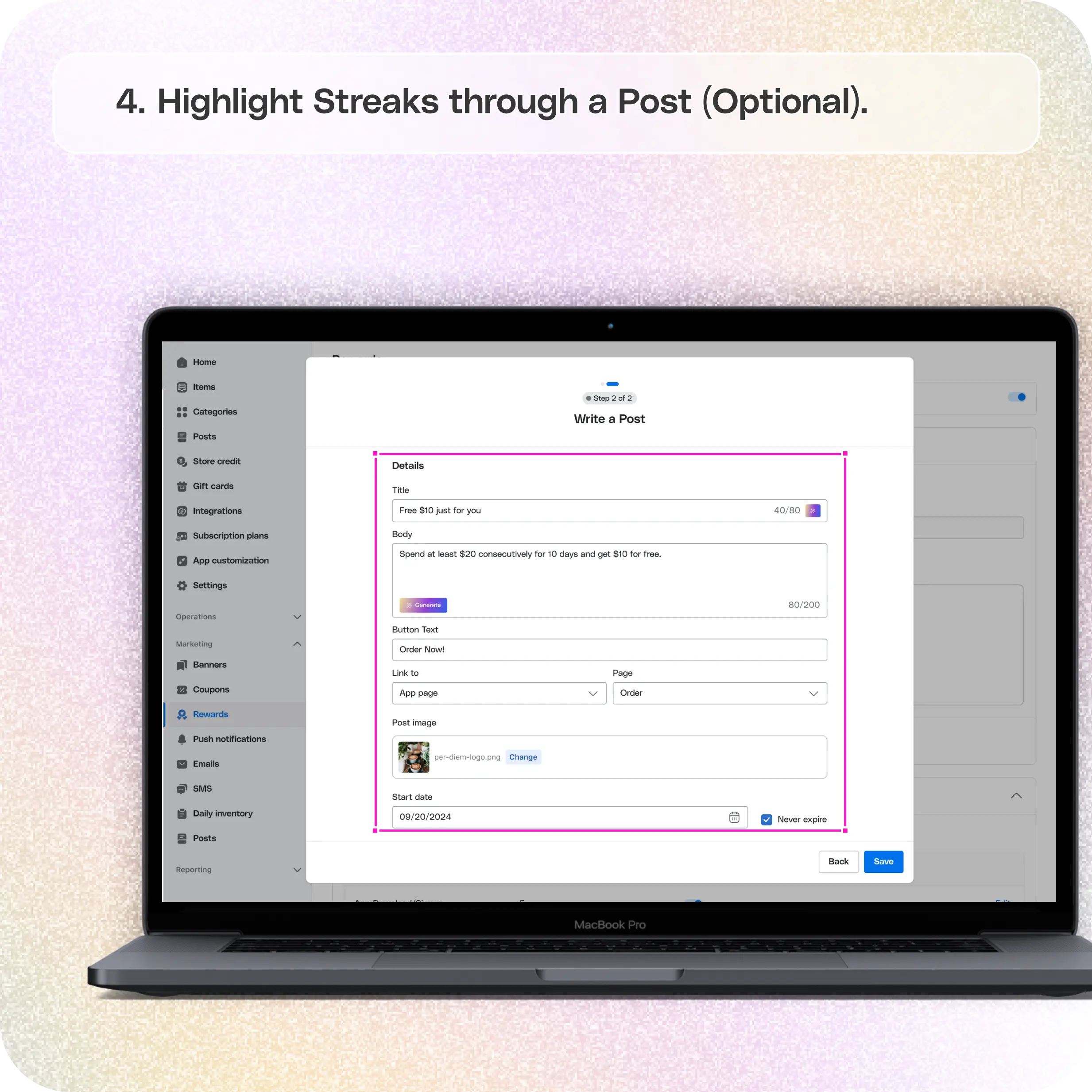
Highlight Streaks Through a Post (Optional)
If you want to promote the streak on your app:
- Write a compelling post title and description.
- Add a CTA and link it with the reward details.
- Upload a visual image for the post.
- Schedule the post to align with the streak duration.
If you prefer not to create a post, select No Post at this step and hit Save.
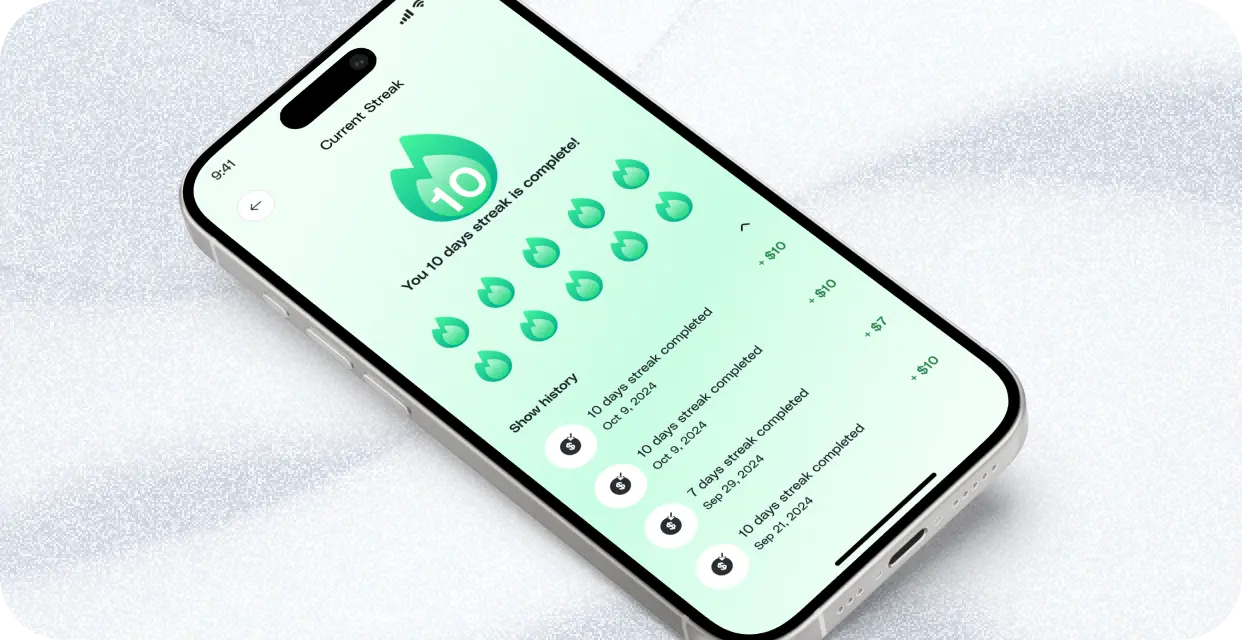
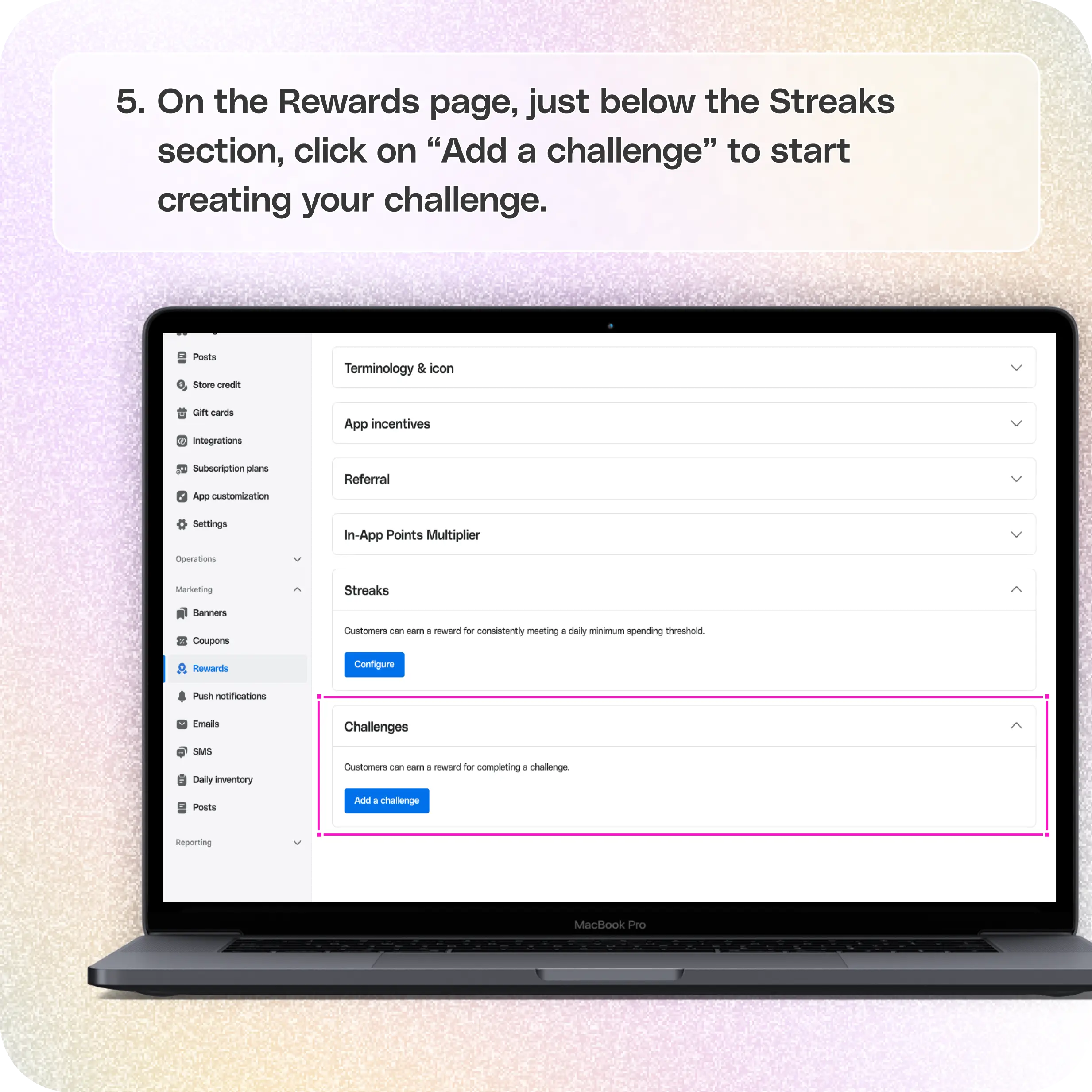
In addition to streaks, you can also engage your customers with Challenges, where they can earn rewards for completing specific tasks or meeting criteria. Here’s how to set them up:
**For Challenges, Click on Add a Challenge
**
On the Rewards page, just below the Streaks section, click on Add a Challenge to start creating your challenge.
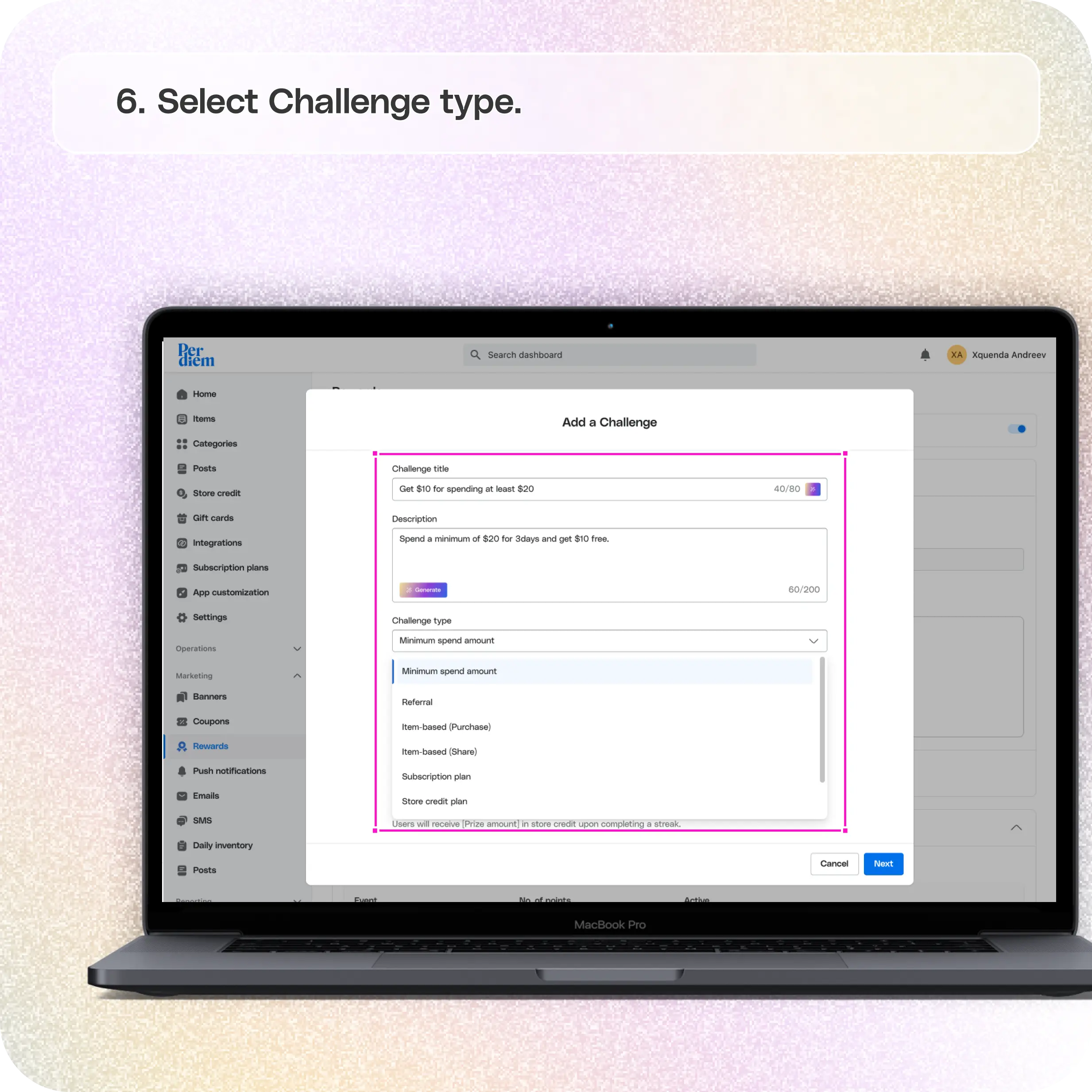
Select Challenge Type
- Title and Description: First, give your challenge a catchy title and write a description that clearly explains the task to your customers.
- Choose Challenge Type: From the Challenge Type dropdown, select the criteria on which you want to reward customers. For example, you could base the challenge on completing a minimum spend amount or any other task.
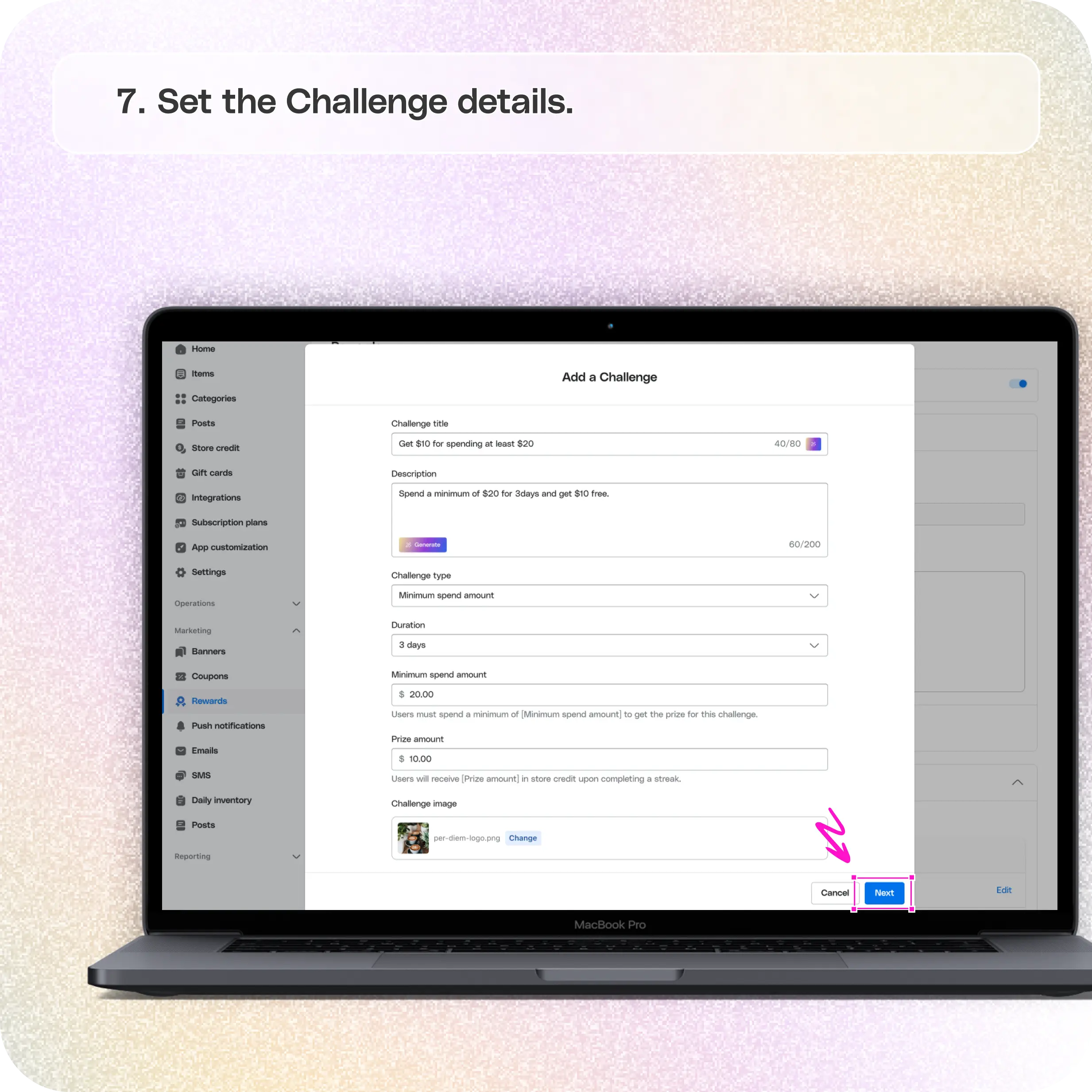
**Set the Challenge Details
**
For a Minimum Spend Challenge:
- Set the Duration: Choose how long customers have to complete the challenge.
- Minimum Spend Amount: Set the minimum spend amount required for the customer to complete the challenge.
- Prize Amount: Specify the reward customers will earn once they complete the challenge.
- Upload an Image: Add a visual image to make the challenge more attractive.
- Click Next to save and implement your challenge.
Still have questions?Contact us
Ask anything or just say hi