


























How to create BOGO deals in Square
BOGO (Buy One, Get One) deals are a great way to increase sales and reward customers. Here’s how to create them directly in your Square Dashboard.
Instructions
- Log in to your Square Dashboard and go to Discounts.
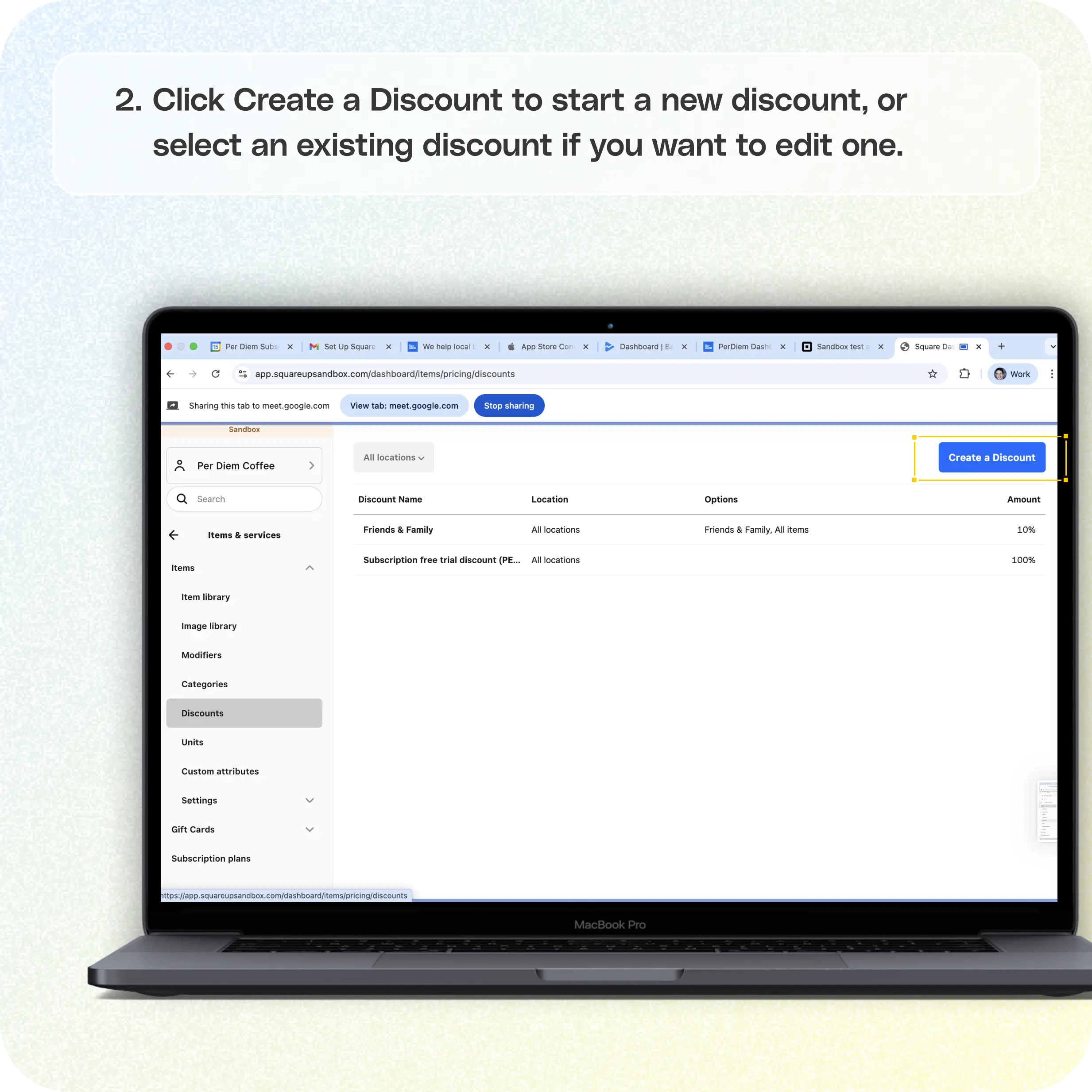
- Click Create a Discount to start a new discount, or select an existing discount if you want to edit one.
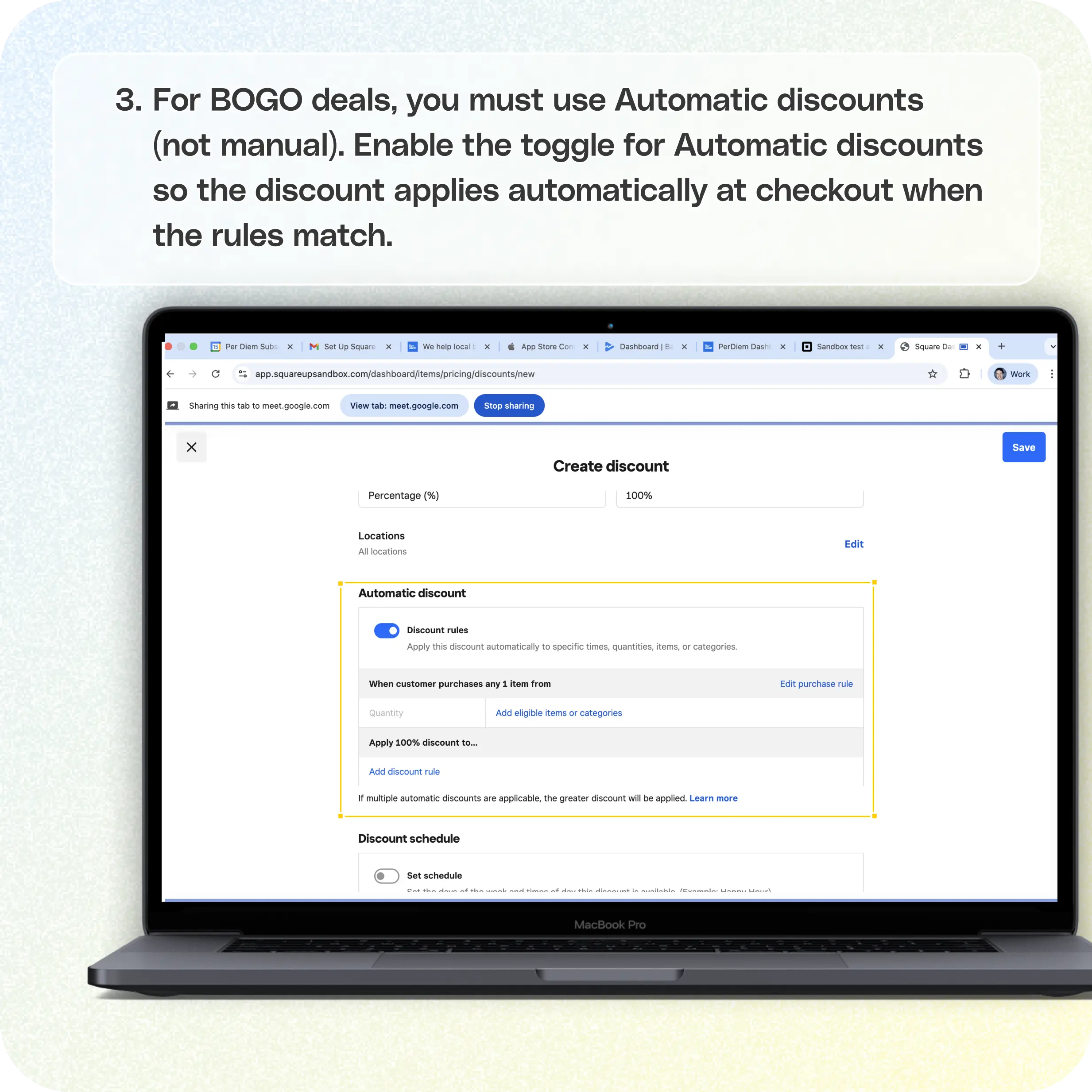
- For BOGO deals, you must use Automatic discounts (not manual).
- Enable the toggle for Automatic discounts so the discount applies automatically at checkout when the rules match.
- Choose whether the discount applies to individual items or item categories.
- Use the quantity rule to define the trigger: set the minimum purchase quantity required to activate the BOGO.
- Add the specific items or categories that are eligible for the deal.
- Choose the discount amount or type that will be applied when the minimum quantity is in the cart:
- Configure whether the discount applies to the cheapest eligible item or to a specific item, if the Square interface asks for that selection.
- Set start and end dates and times if you want the BOGO to run only during specific periods (for example, happy hour or a weekend special).
- Click Save to activate the discount.
- Test the deal in your POS or in the app by adding the required items/quantities to a sale to make sure the BOGO applies as expected.
Still require support?
Contact support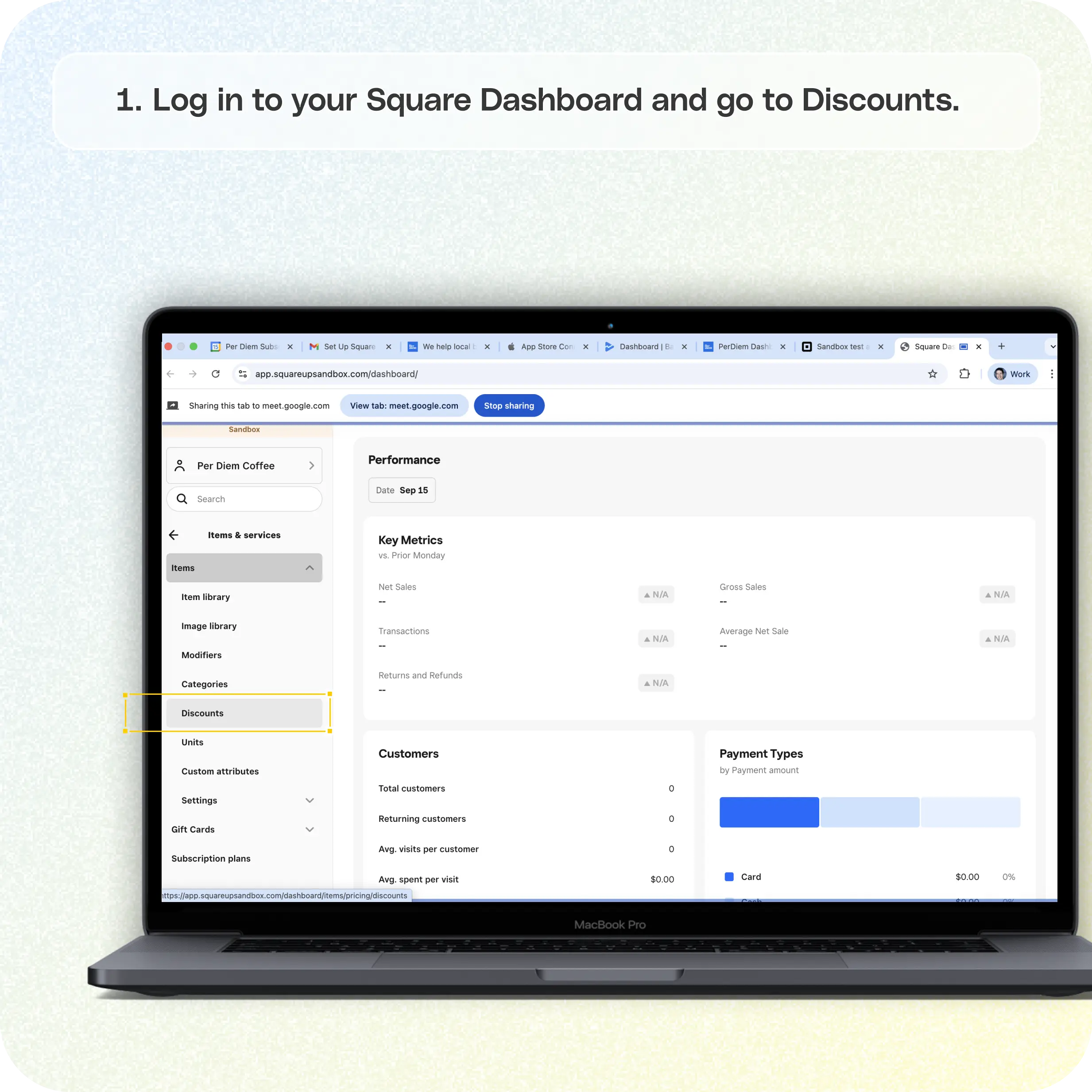
1. Sign in to Your Square Dashboard
Log in to your Square Dashboard and go to Discounts.
**
2. Create a Discount**
Click Create a Discount to start a new discount, or select an existing discount if you want to edit one.
3. Choose the discount type — use Automatic discounts
For BOGO deals, you must use Automatic discounts (not manual). Enable the toggle for Automatic discounts so the discount applies automatically at checkout when the rules match.
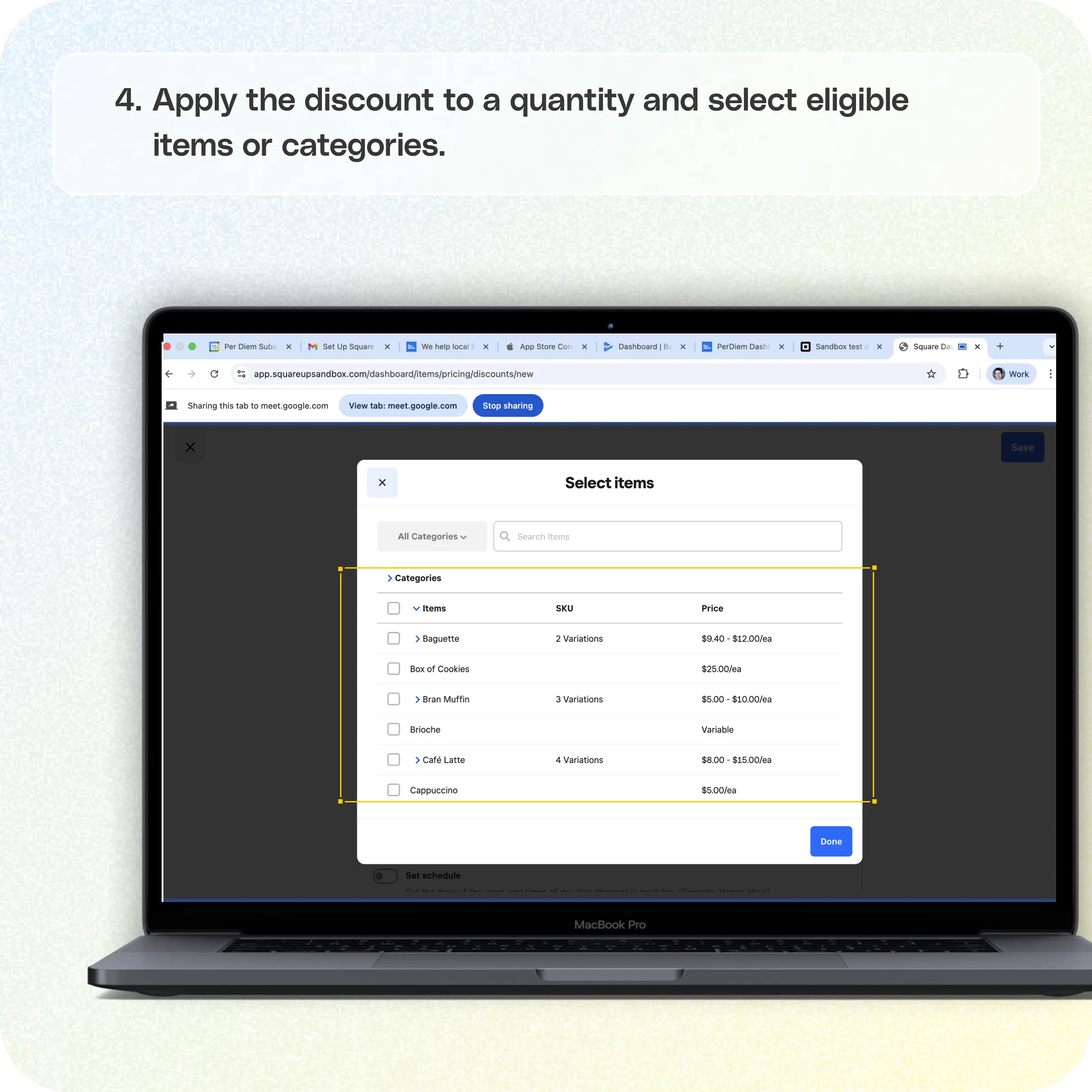
4. Apply the discount to a quantity and select eligible items or categories
Choose whether the discount applies to individual items or item categories. Use the quantity rule to define the trigger: set the minimum purchase quantity required to activate the BOGO.
- Example: set minimum quantity to 2 to trigger a basic BOGO.
- For packaged deals (buy 5 get 1 free), set the minimum purchase accordingly. Many merchants (for example, bakeries or cookie shops) use category discounts like this for packaged deals.
Add the specific items or categories that are eligible for the deal.
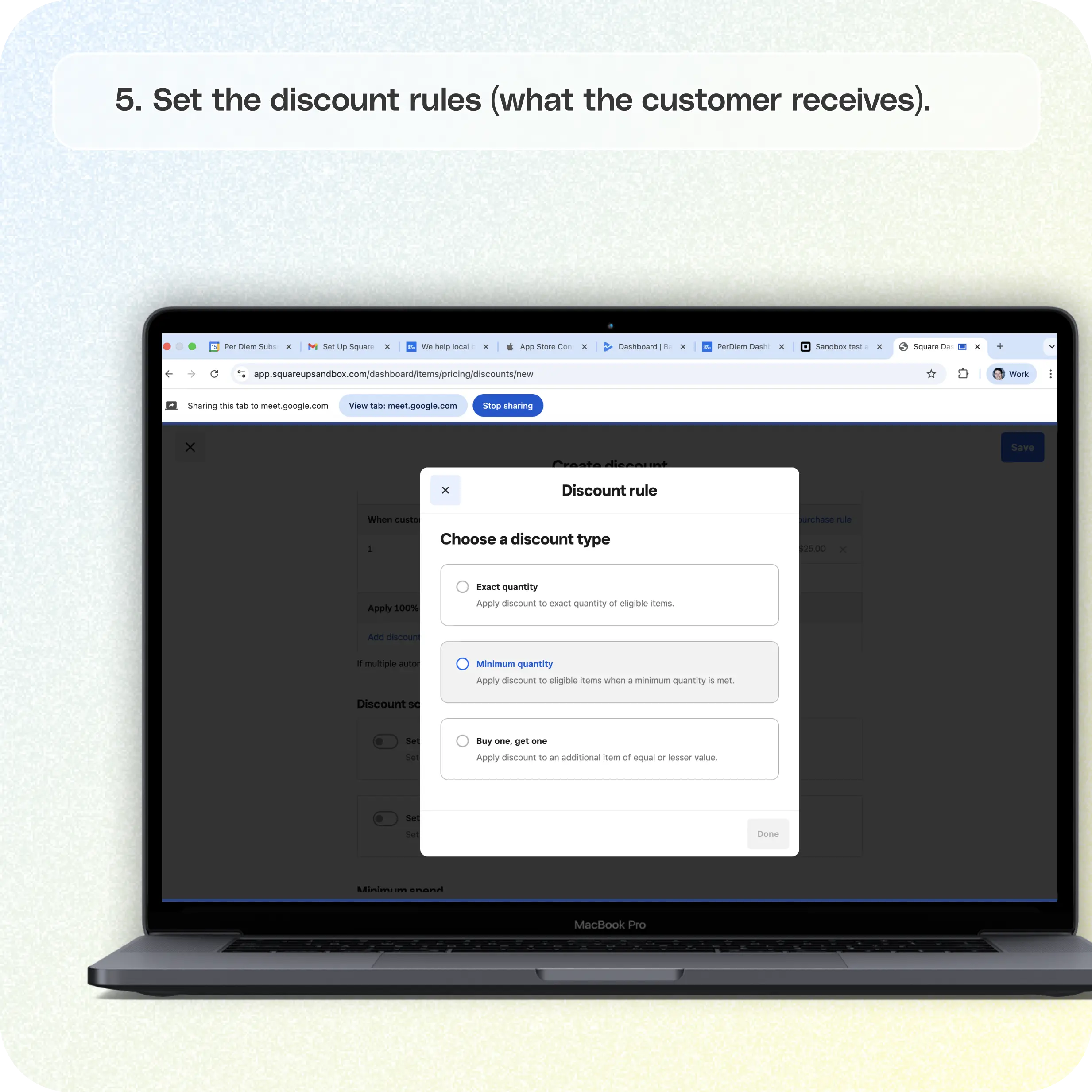
5. Set the discount rules (what the customer receives)
Choose the discount amount or type that will be applied when the minimum quantity is in the cart:
- To give a free item, set the discount so the qualifying extra item is fully discounted (for example, 100% off the qualifying item).
- Or set a percentage or fixed amount if you prefer a partial discount.
Configure whether the discount applies to the cheapest eligible item or to a specific item, if the Square interface asks for that selection.
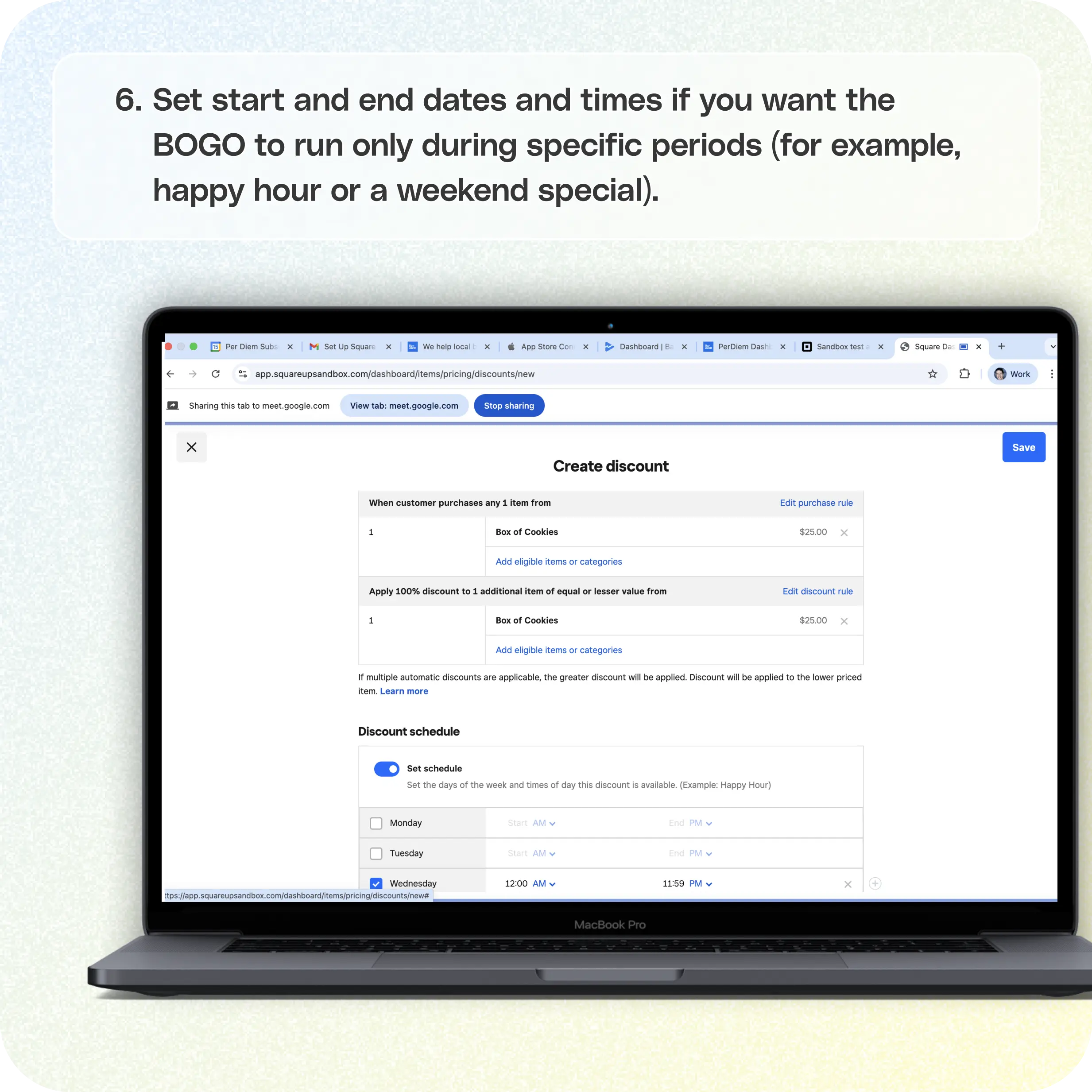
6. Schedule the discount
Set start and end dates and times if you want the BOGO to run only during specific periods (for example, happy hour or a weekend special).
**
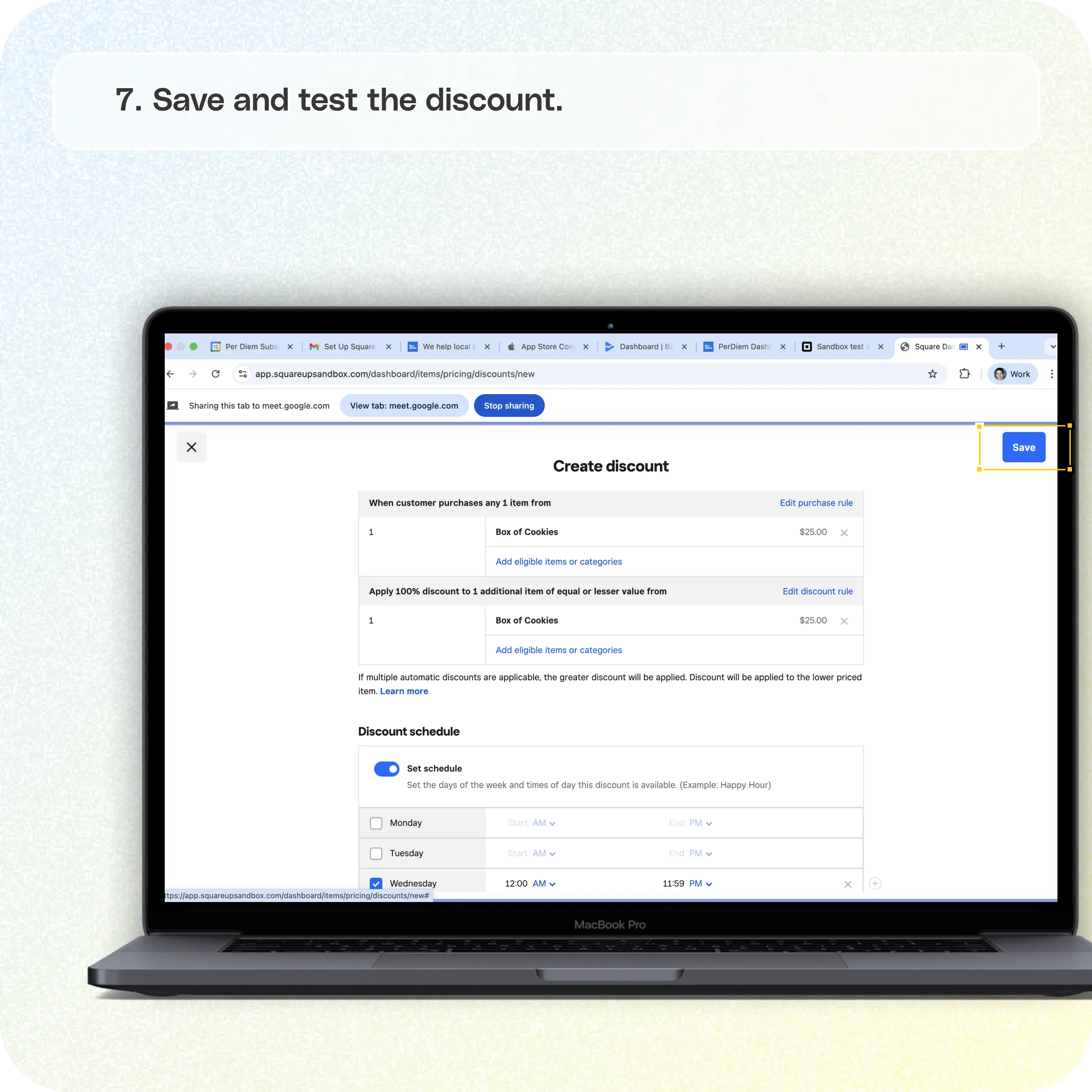
7. Save and test the discount**
Click Save to activate the discount. Test the deal in your POS or in the app by adding the required items/quantities to a sale to make sure the BOGO applies as expected.
Still have questions?Contact us
Ask anything or just say hi