

























Help center
How to customize your app colors to match your brand
You can personalize your app’s look and feel by updating its color palette to reflect your brand’s identity. Follow these steps to customize your app colors from your Per Diem merchant dashboard.
- Log in to your Per Diem Merchant Dashboard and navigate to App Customization from the left-side menu.
- Under App Customization, select the Colors option from the Styling tab.
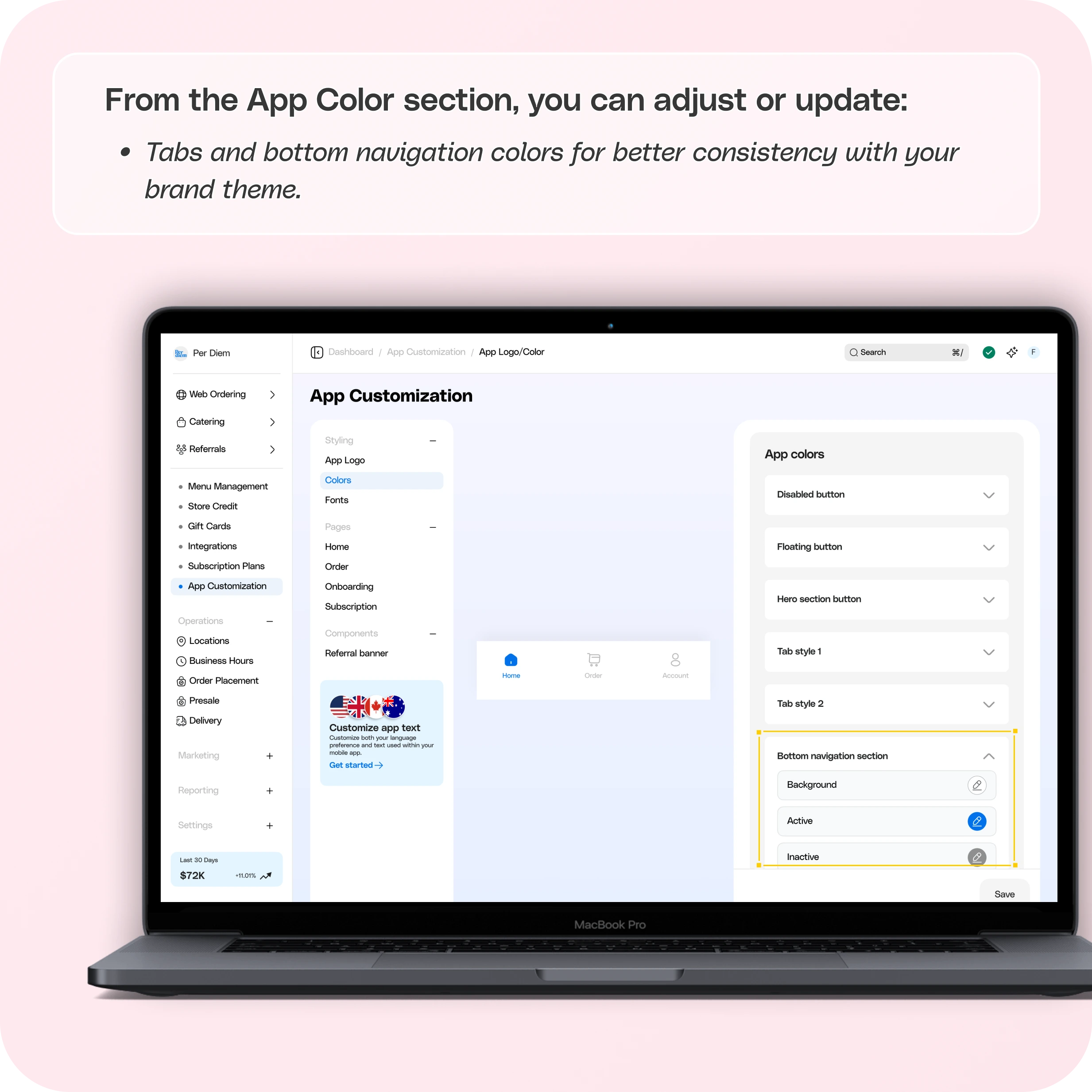
- From the App Color section, you can adjust or update:
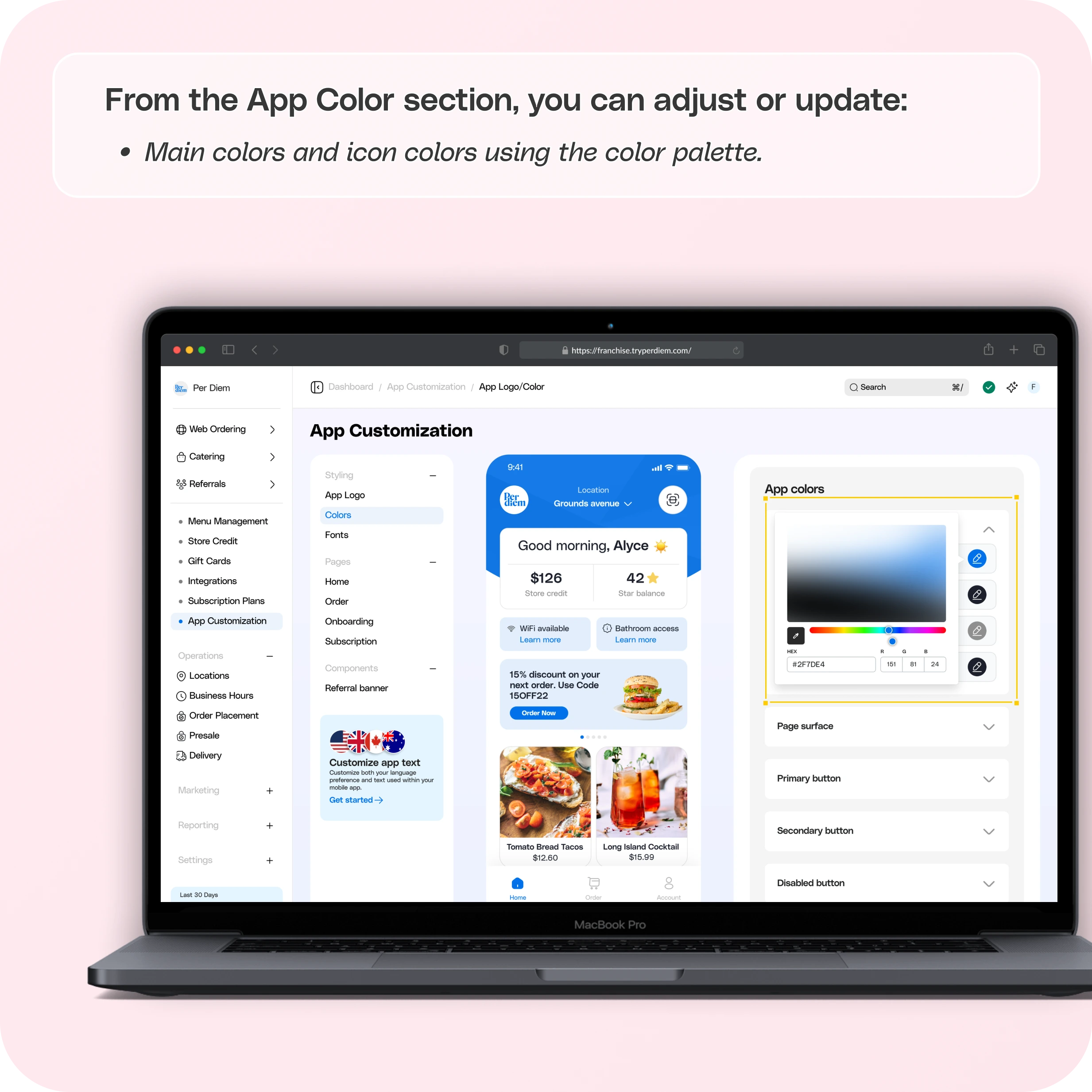
- Main colors and icon colors using the color palette.
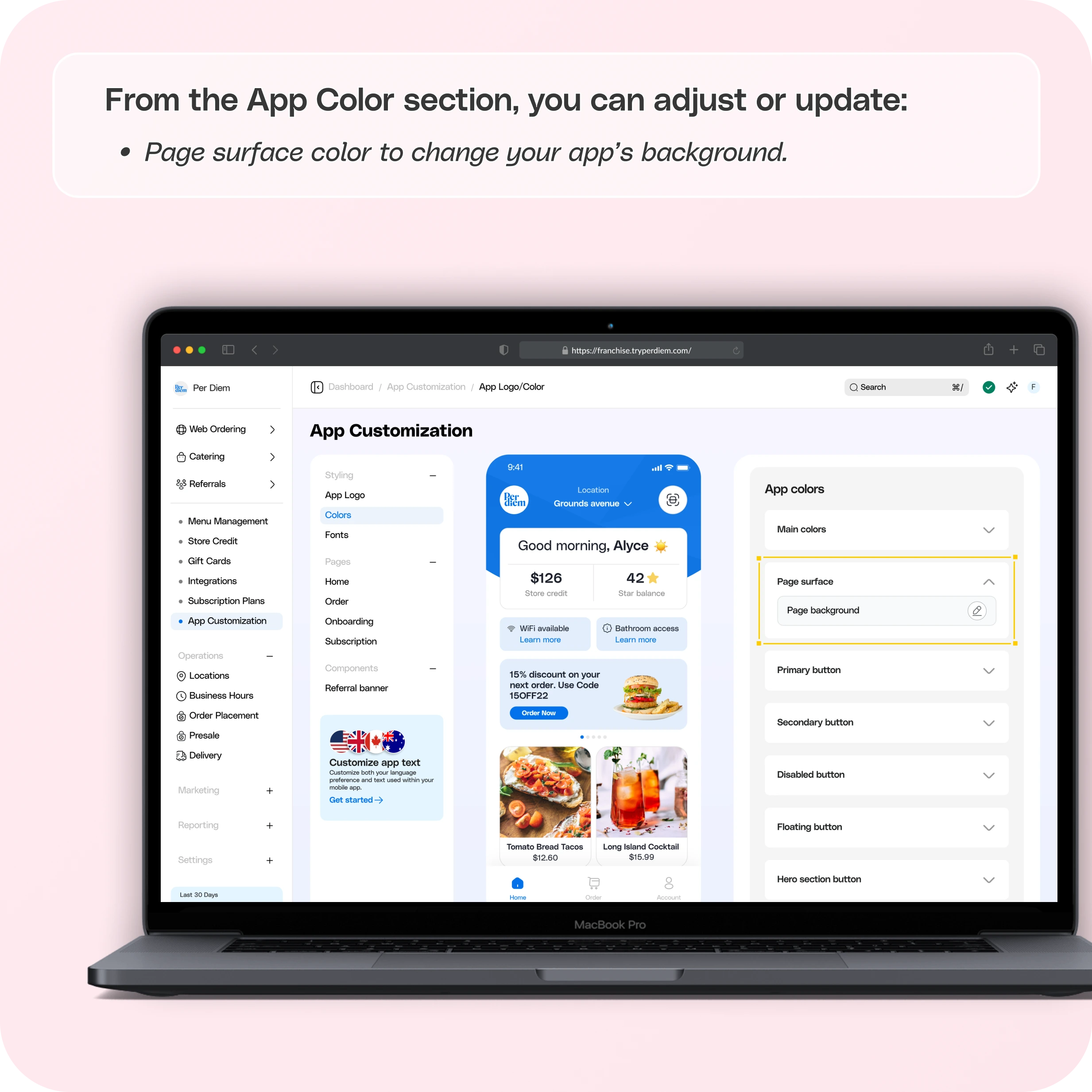
- Page surface color to change your app’s background.
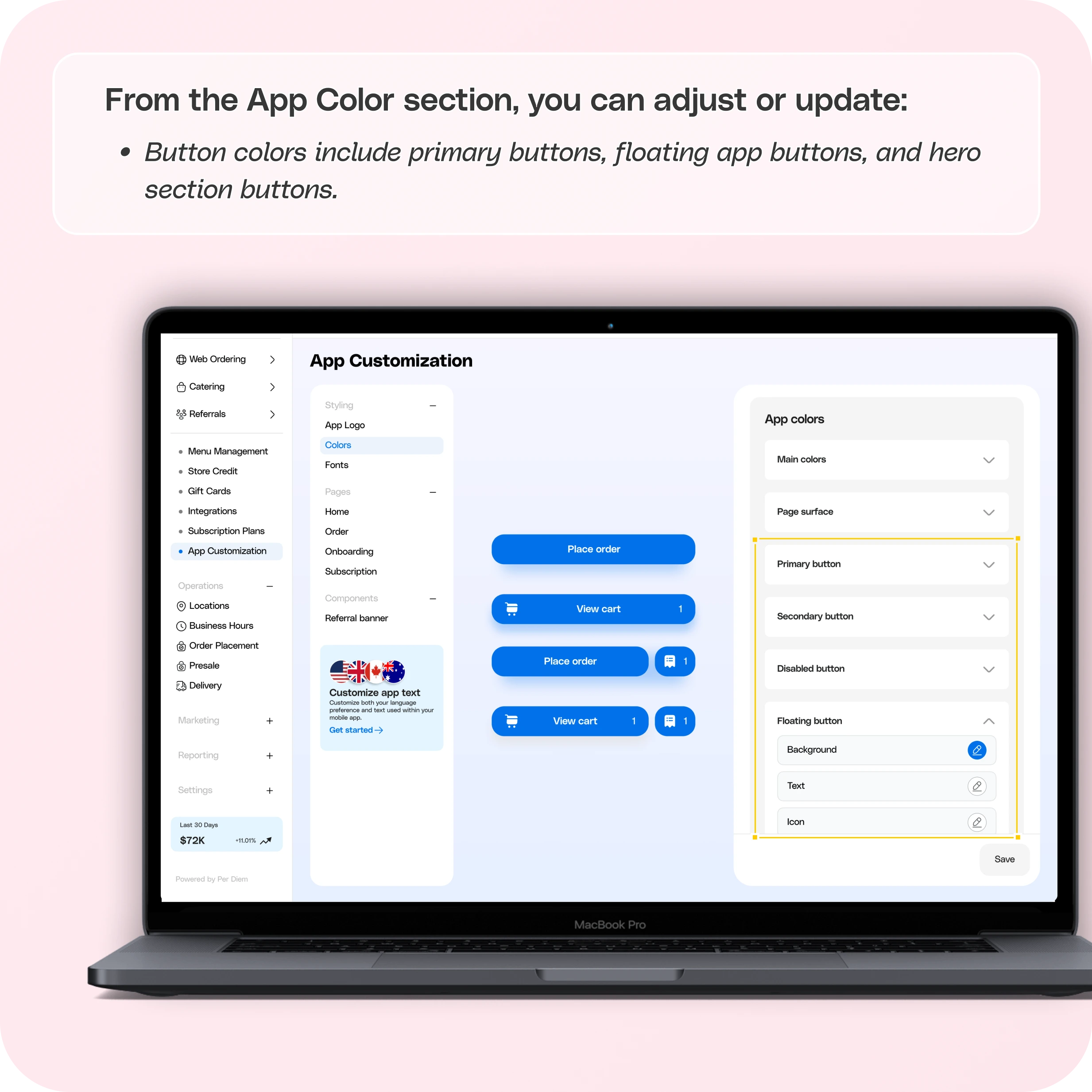
- Button colors include primary buttons, floating app buttons, and hero section button
- Tabs and bottom navigation colors for better consistency with your brand theme.
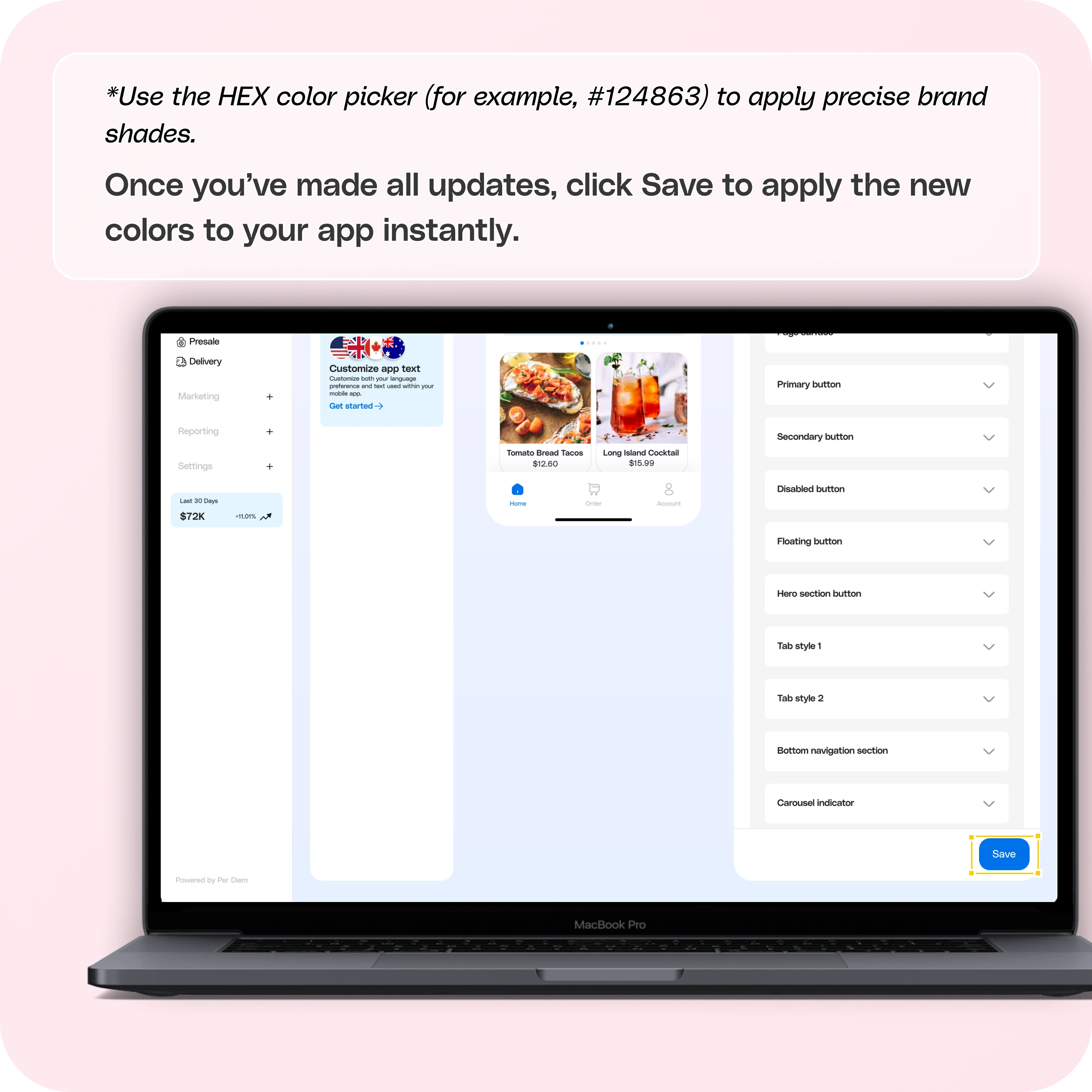
- Use the HEX color picker (for example, #124863) to apply precise brand shades.
- Once you’ve made all updates, click Save to apply the new colors to your app instantly.
Still require support?
Contact support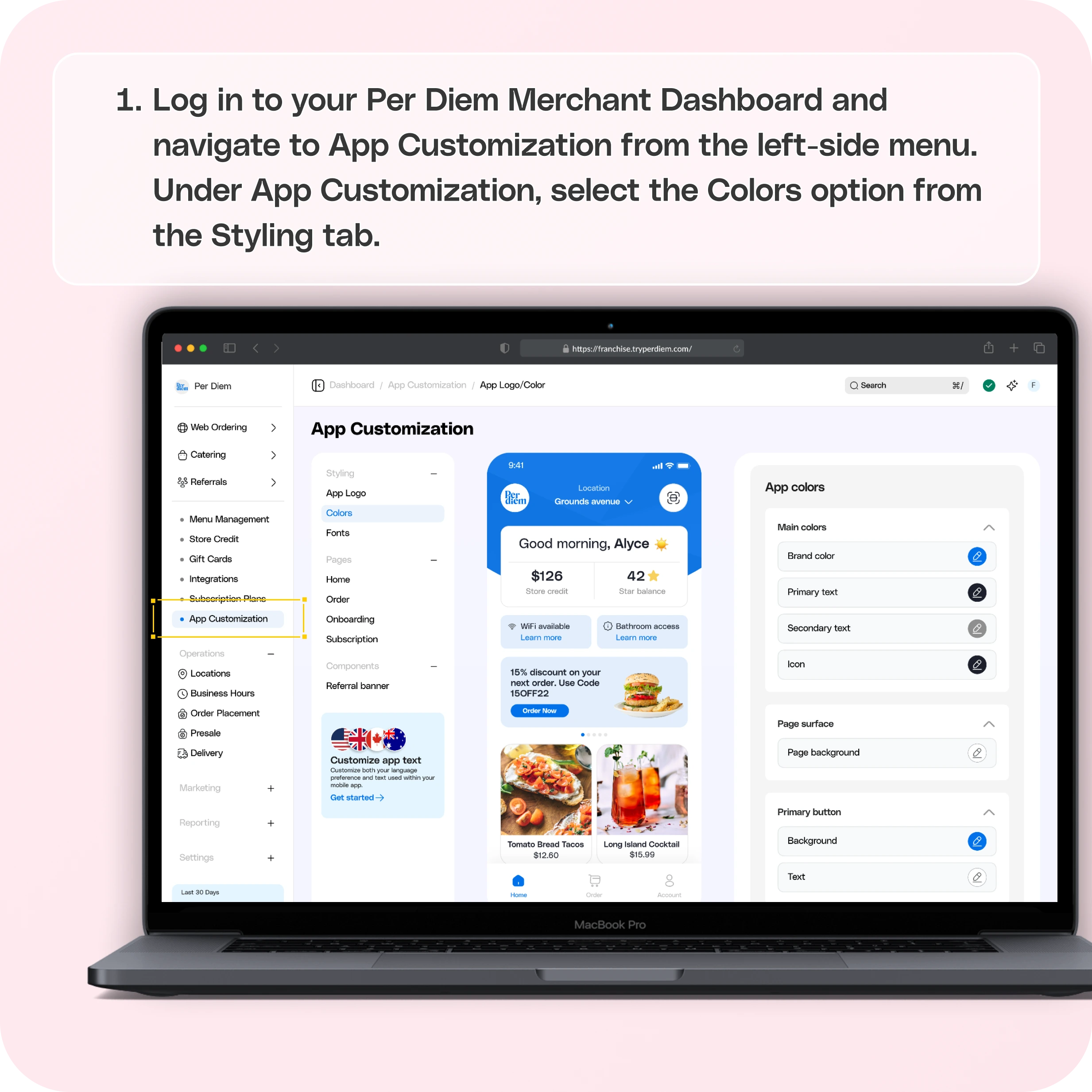
Step 1: Log in to Your Merchant Dashboard
Log in to your Per Diem Merchant Dashboard and navigate to App Customization from the left-side menu.
**
Step 2: Go to the Styling Tab**
Under App Customization, select the Colors option from the Styling tab.
**
Step 3: Edit App Colors**
From the App Color section, you can adjust or update:
- Main colors and icon colors using the color palette.
- Page surface color to change your app’s background.
- Button colors include primary buttons, floating app buttons, and hero section buttons.
- Tabs and bottom navigation colors for better consistency with your brand theme.
Use the HEX color picker (for example, #124863) to apply precise brand shades.
**
Step 4: Save Changes**
Once you’ve made all updates, click Save to apply the new colors to your app instantly.
Still have questions?Contact us
Ask anything or just say hi