


























Set prep time and busy mode with improved logic on Per Diem
Keeping your kitchen running smoothly during both calm and chaotic times just got easier. With the new logic updates in Per Diem, you now have more control over how prep times and busy modes work across your store.
Instructions
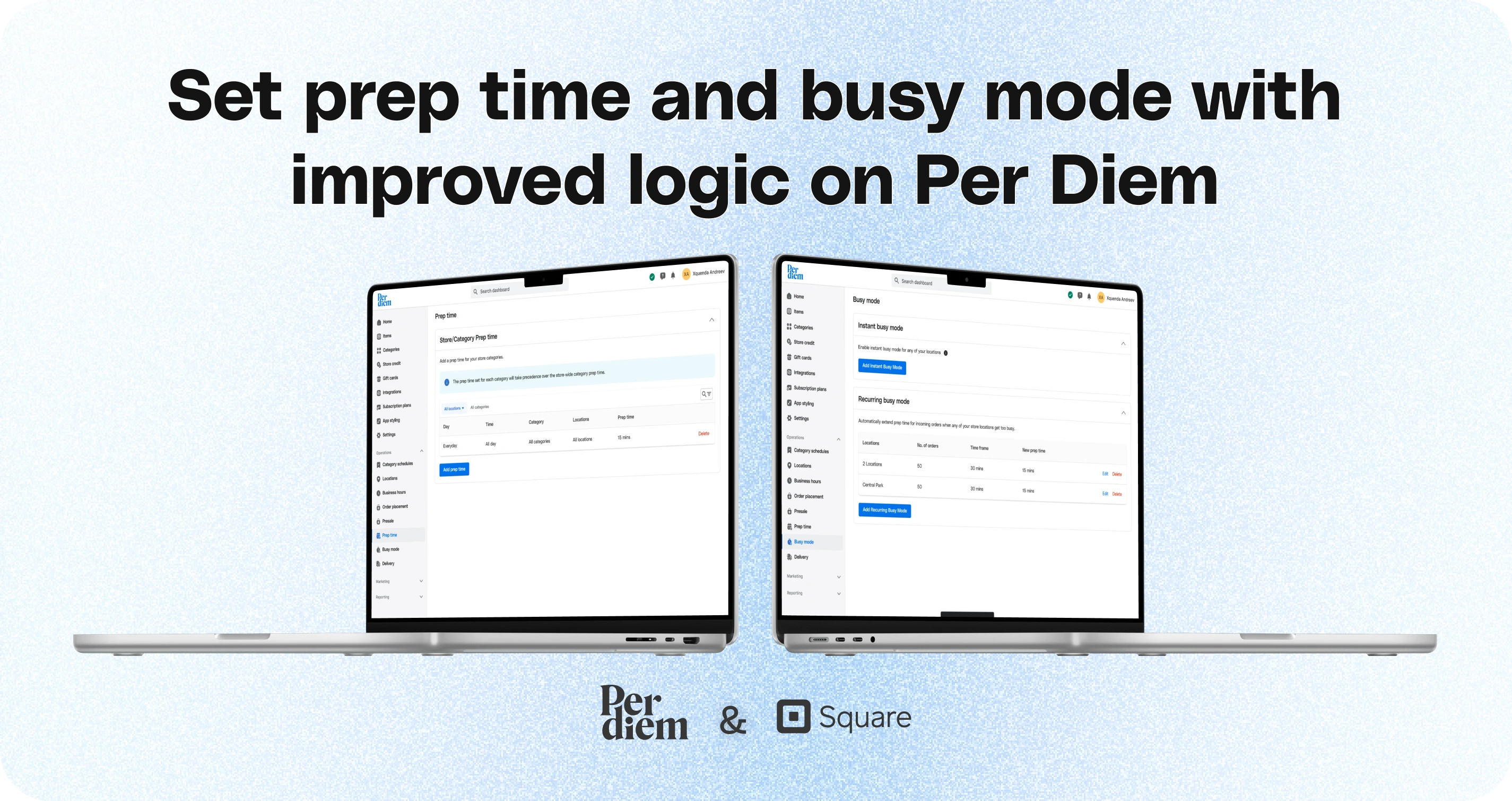
- To begin, access your dashboard and look at the left-hand side navigation. Under Operations, you’ll find all the tools you need to manage prep time and busy mode settings across your locations.
- Select your desired location and category from the dropdown menus.
- Click Add prep time on the top right.
- Customize the days, time windows, and set how long prep takes.
- Hit Save, and you’re all set.
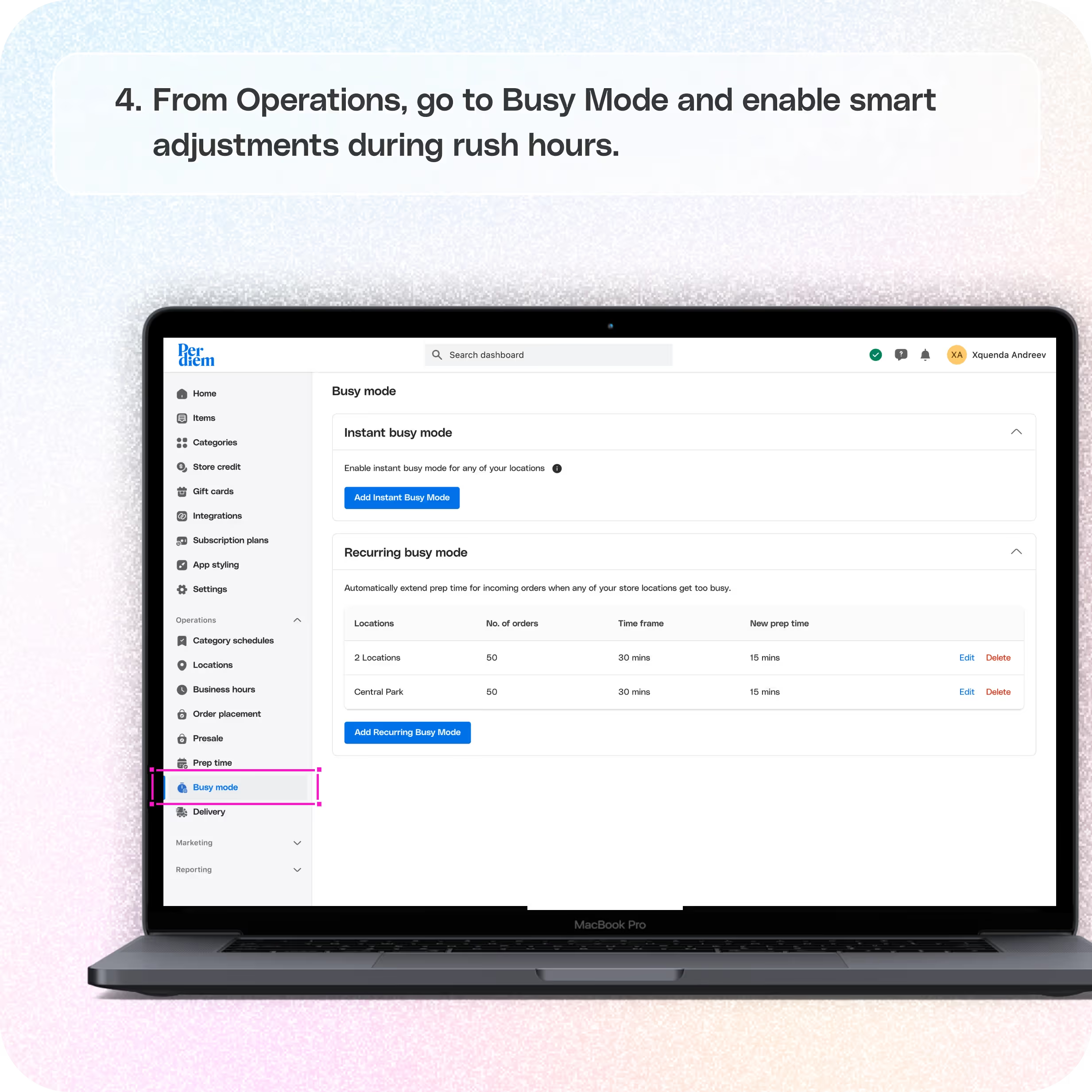
- From Operations, go to Busy Mode and enable smart adjustments during rush hours
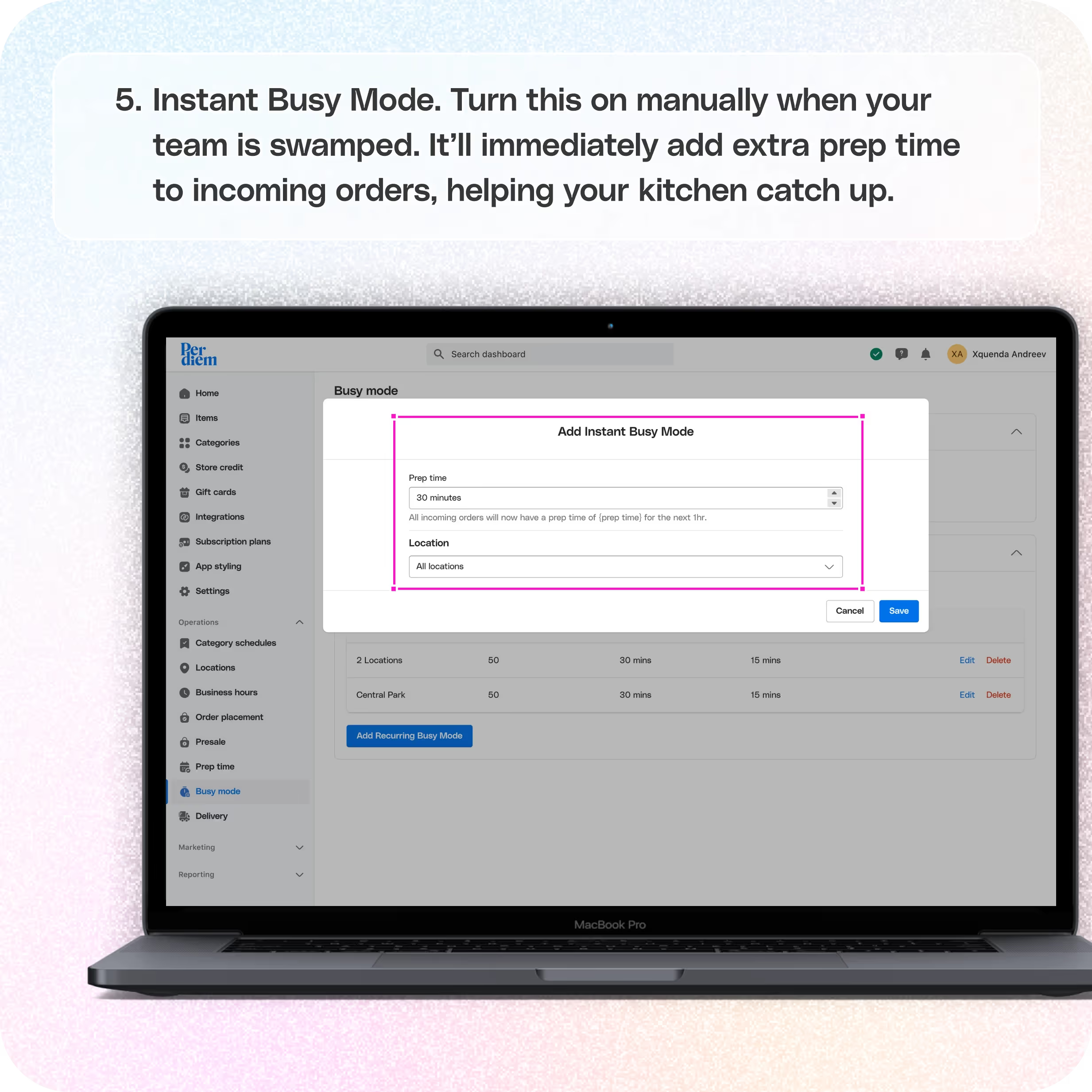
- Instant Busy Mode:
- Turn this on manually when your team is swamped. It’ll immediately add extra prep time to incoming orders, helping your kitchen catch up.
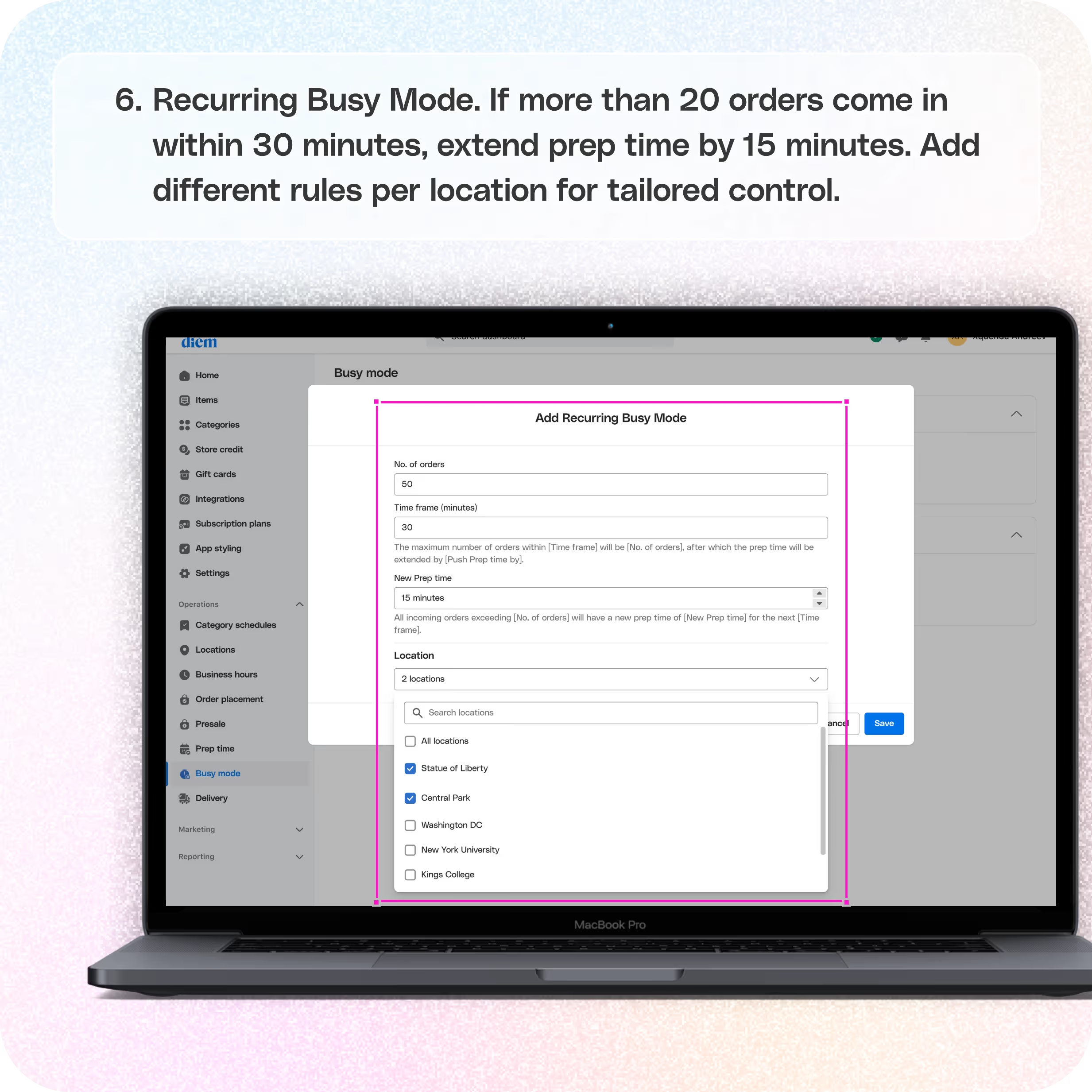
- Recurring Busy Mode:
- Choose the number of incoming orders and the time window that should activate busy mode.
- Set how much prep time should be added automatically during those periods.
- Create different rules per location to match each store's pace an order volume.
Still require support?
Contact support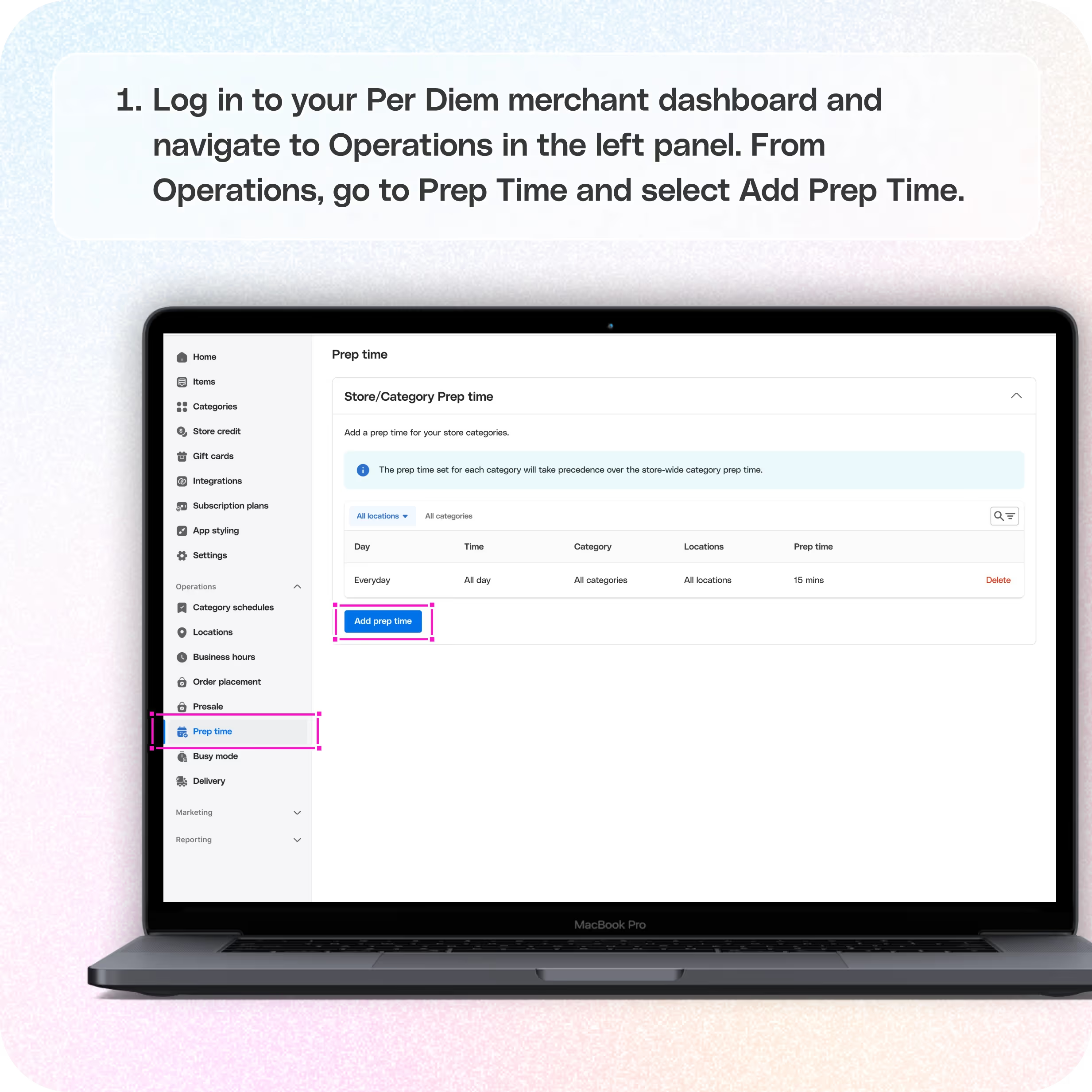
1. Log in to your Per Diem merchant dashboard and navigate to Operations in the left panel.
To begin, access your dashboard and look at the left-hand side navigation. Under Operations, you’ll find all the tools you need to manage prep time and busy mode settings across your locations.
2. From Operations, go to Prep Time and select Add Prep Time
You can now set prep time at both the store level and by category, giving you more precision. Prep time set for a specific category will override the store-wide time.
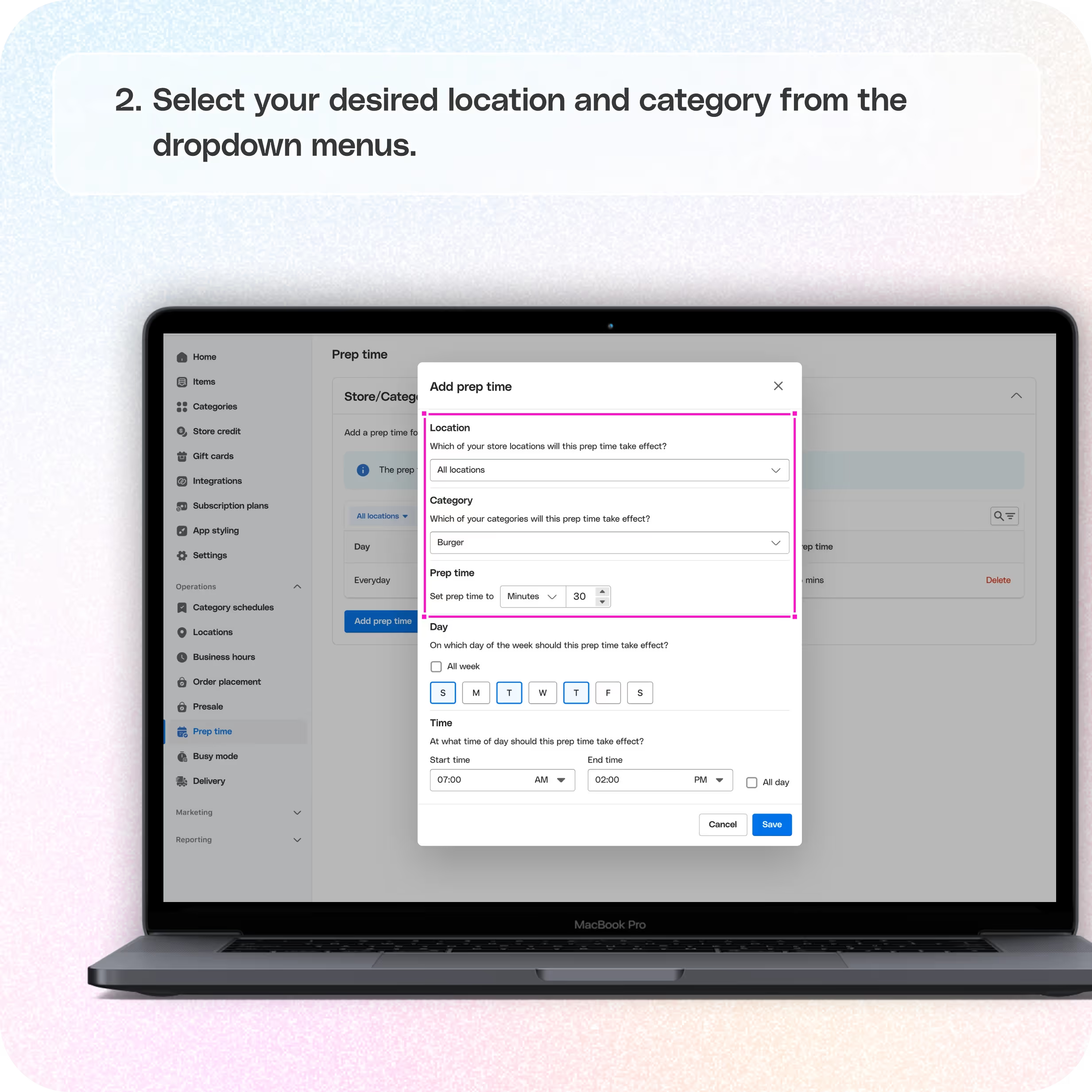
- Select your desired location and category from the dropdown menus.
- Click Add prep time on the top right.
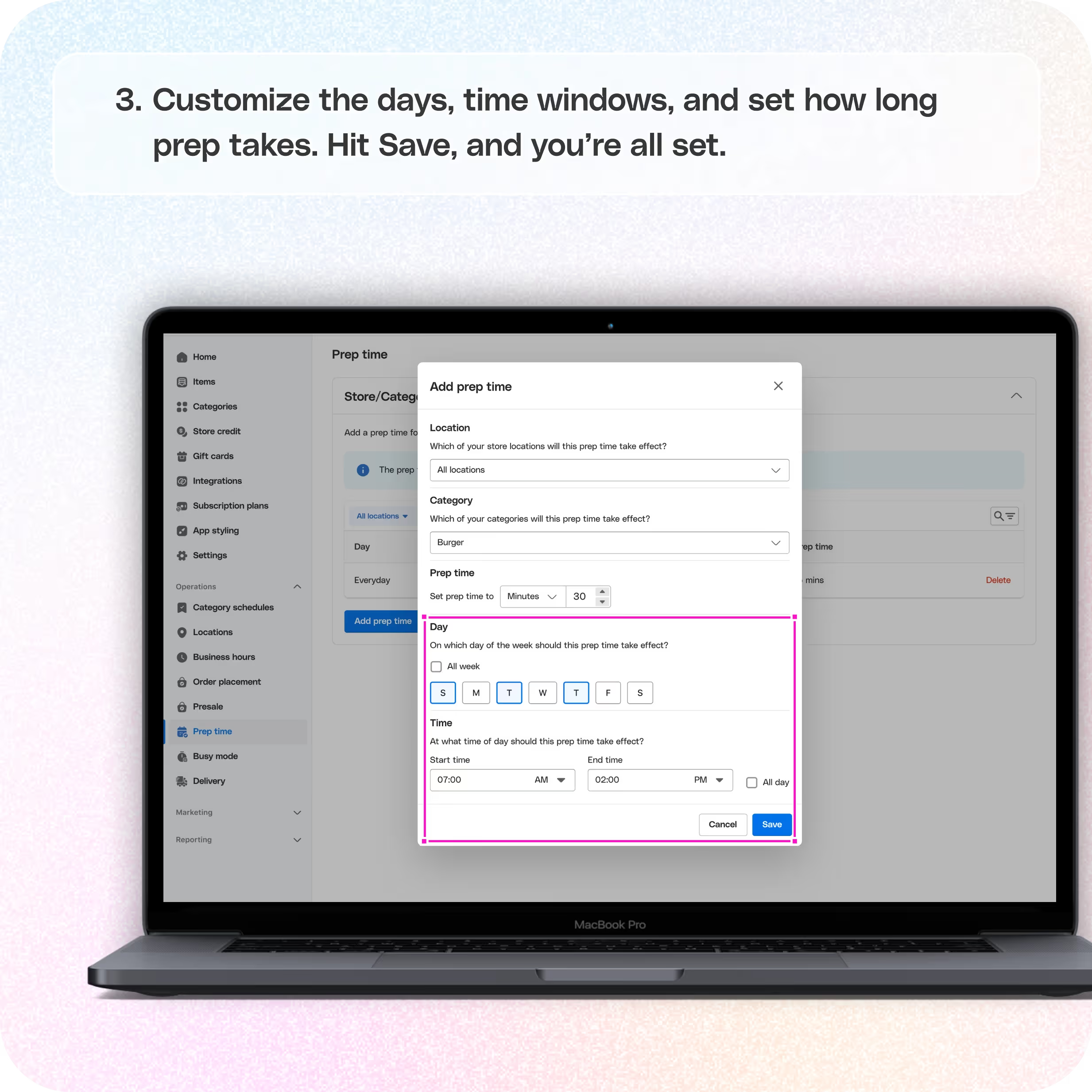
- Customize the days, time windows, and set how long prep takes.
- Hit Save, and you’re all set.
This ensures that customers always see accurate wait times, no matter when or what they order.
3. From Operations, go to Busy Mode and enable smart adjustments during rush hours
You now have two options under the Busy Mode tab:
Instant Busy Mode
Turn this on manually when your team is swamped. It’ll immediately add extra prep time to incoming orders, helping your kitchen catch up.
Recurring Busy Mode
Automate the process by setting rules. For example:
- Choose the number of incoming orders and the time window that should activate busy mode.
- Set how much prep time should be added automatically during those periods.
- Create different rules per location to match each store’s pace and order volume.
Click Add Recurring Busy Mode to create a new one. To edit or delete an existing one, select the options on the right of the locations where the rule applies, then make your changes.
Still have questions?Contact us
Ask anything or just say hi