






















Sequences (Lifecycle Messages) in Per Diem: The Complete Guide
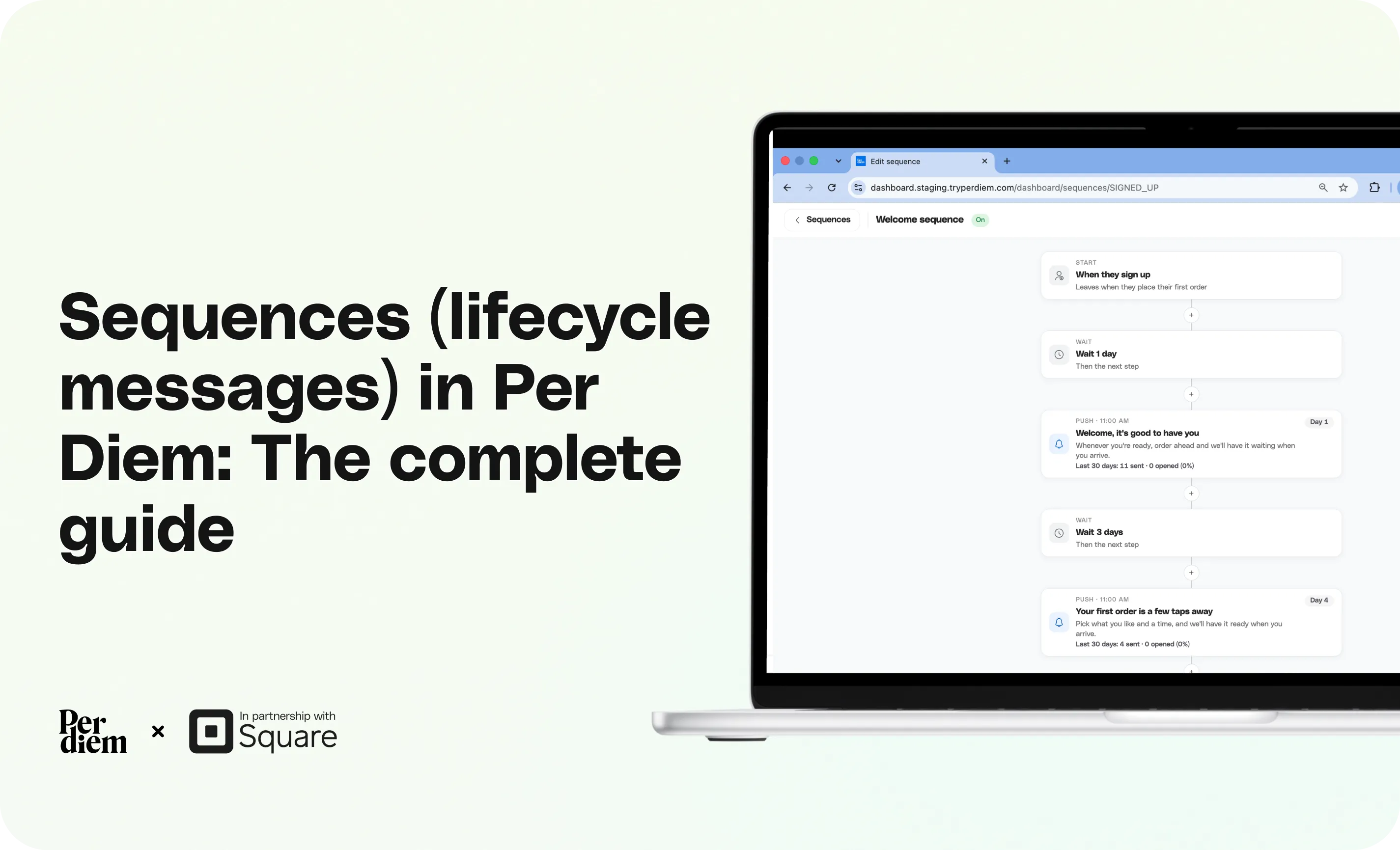
Sequences are ready-made automations that send messages to your customers based on where they are in their relationship with you: just signed up, new, a regular, one of your top spenders, or slipping away. Each customer is in one stage at a time, and each stage has its own sequence. When a customer moves to a new stage, their old sequence stops and the new one starts, so they never get overlapping messages.
- Go to Marketing → Sequences.
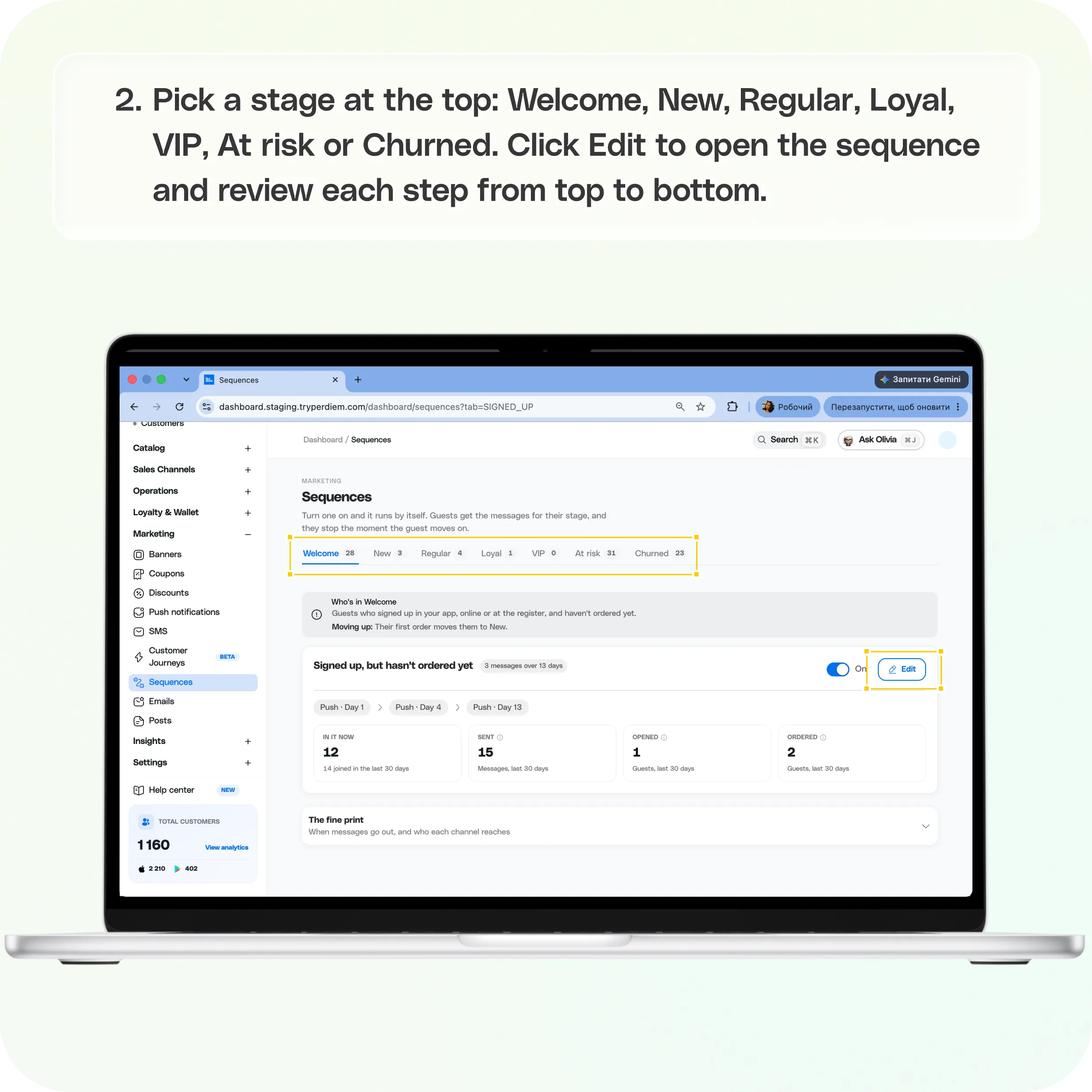
- Pick a stage at the top: Welcome, New, Regular, Loyal, VIP, At risk or Churned.
- Click Edit to open the sequence and review each step from top to bottom.
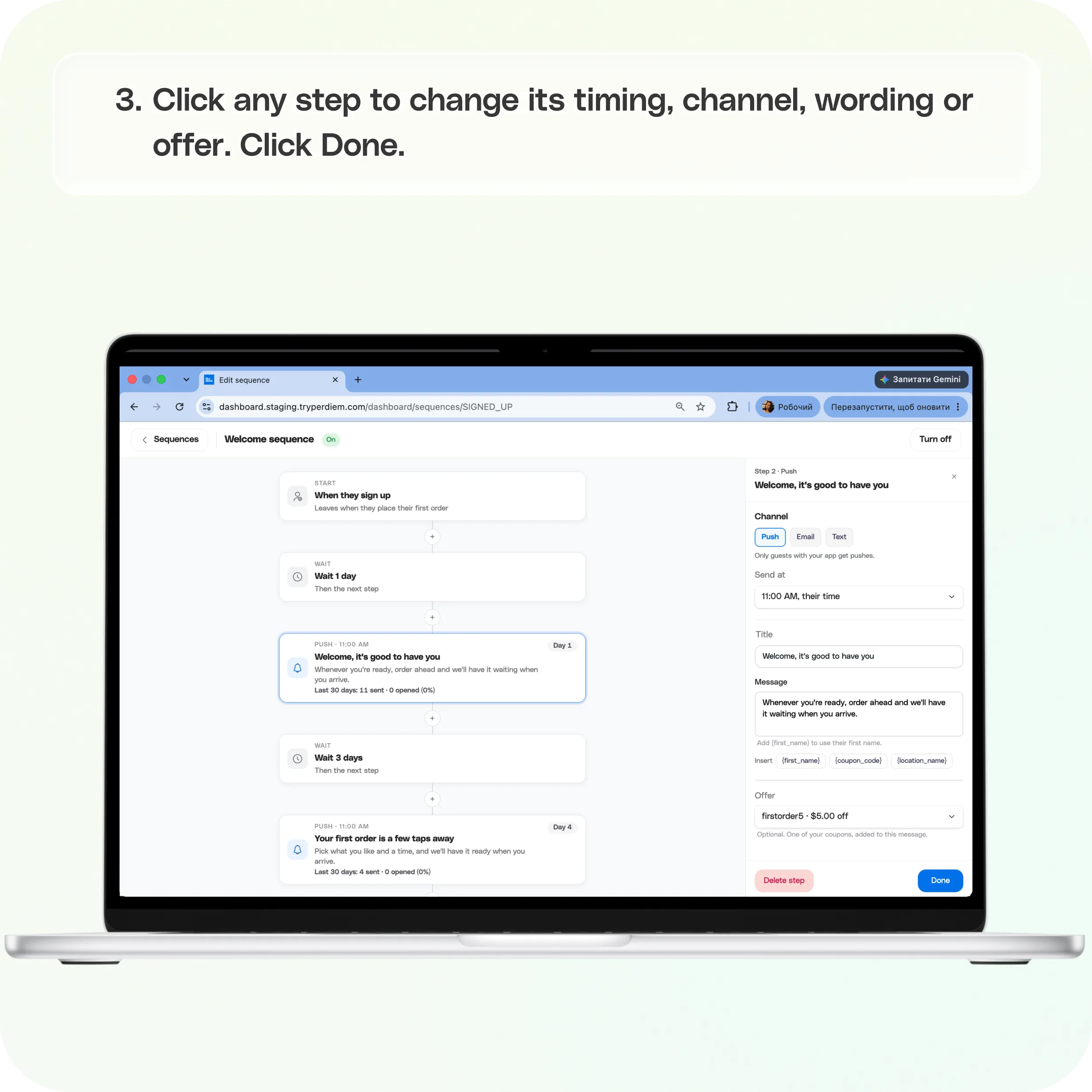
- Click any step to change its timing, channel, wording or offer. Click Done.
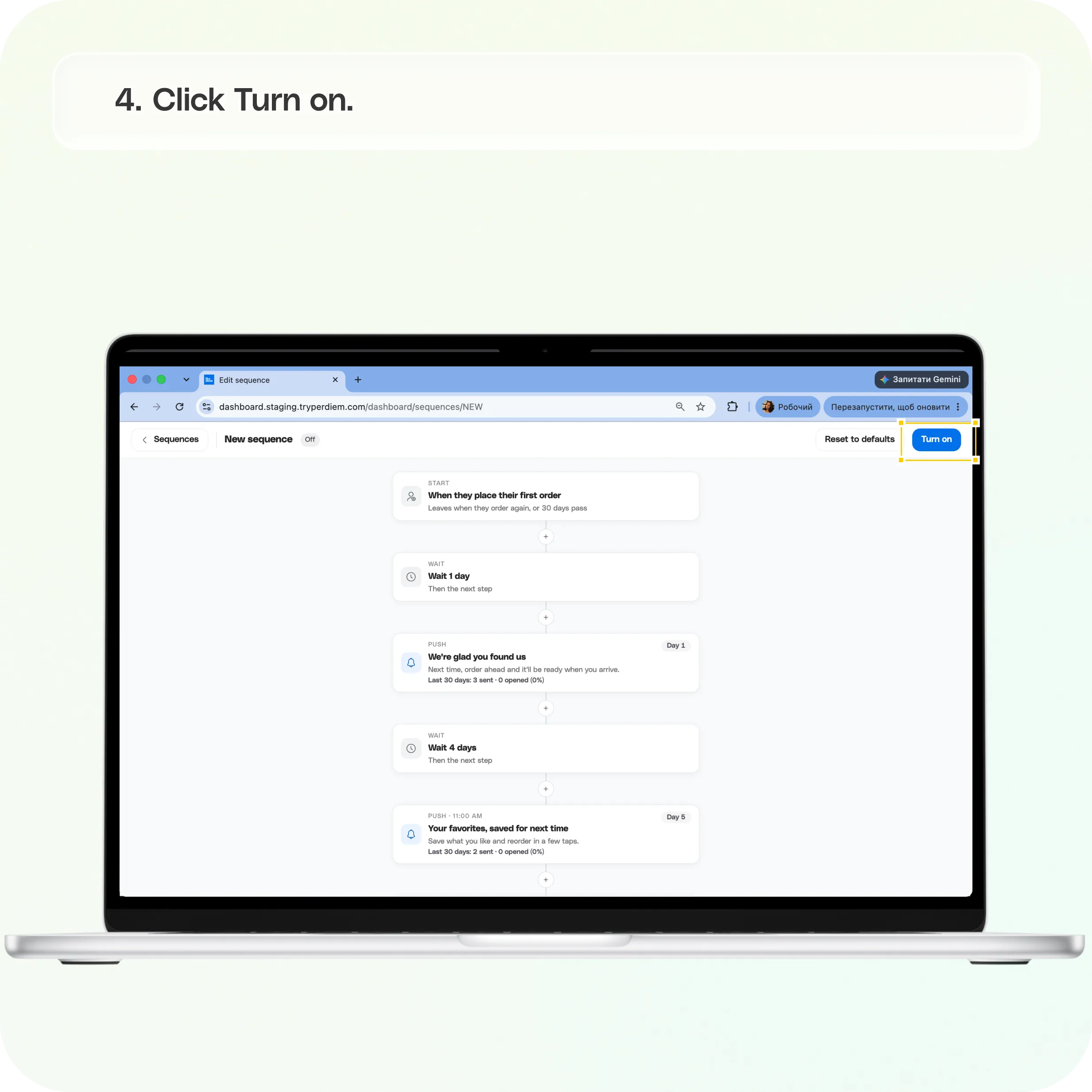
- Click Turn on.
Still require support?
Contact support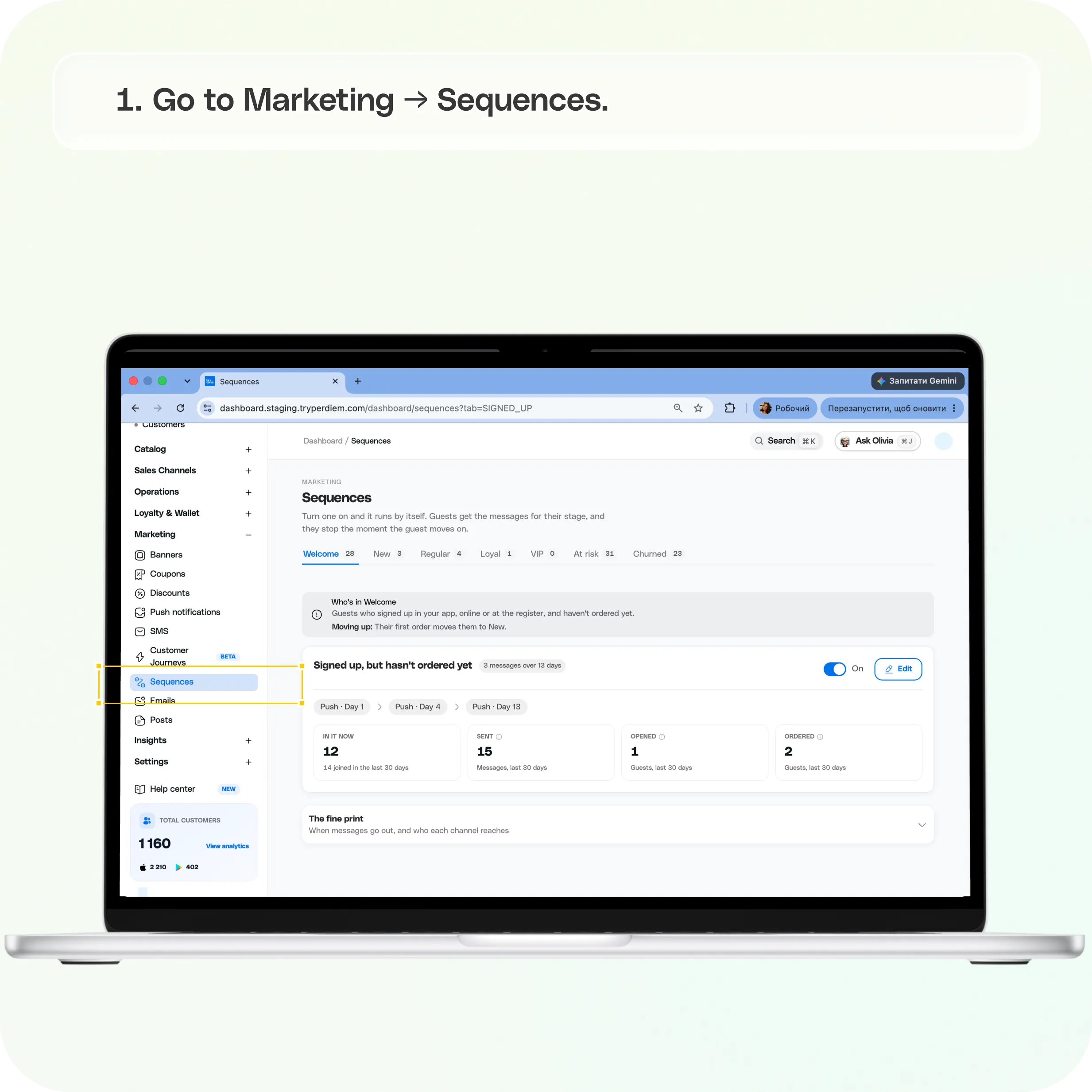
We recommend starting with Welcome, New and At risk. They cover the moments when customers are most likely to order again or drift away. Add the others once you've seen how customers respond.
Before you switch a sequence on:
- Push notifications reach customers who have your app installed. There's nothing to set up.
- Emails reach anyone with an email address, including customers who only order in store. Verify your sending domain, buy email credits and create an email template first. See Getting Started with Emails in Per Diem.
- Texts reach customers who have agreed to receive texts. Buy text credits first. See Getting Started with SMS in Per Diem.
- Offers: if a message includes a discount, create the coupon first. If your customers mostly order in store, read Offers and coupons below before you choose one.
If a channel isn't set up, that message is skipped and the customer moves on to the next step. Your Per Diem account manager can set up your email template and sequences for you.
Setting up and managing a sequence
How do I set up a sequence?
- Go to Marketing → Sequences.
- Pick a stage at the top. You'll see who's in it, how customers move in and out, and the messages it sends.
- Click Edit. The sequence opens with every step in order, from Start to Finished.
- Adjust the timing. Click a Wait step, enter a number, and choose Hours or Days. Click Done.
- Personalize the message. Click a message step, update it, and click Done.
- To add a step, click + between two steps. To remove one, open it and click Delete step.
- Click Turn on.
When you switch a sequence on, every customer already in that stage starts it, spread over 3 days so they don't all hear from you at once. To start over at any time, click Reset to defaults.
What can I change in a message step?
- Channel: Push, Email or Text.
- Send at: as soon as it's due, or at 9:00 AM, 11:00 AM, 2:00 PM or 5:00 PM in the customer's time zone.
- Title and Message: use the Insert buttons to add {first_name} or {location_name}.
- Offer: optional. Add one of your coupons to the message.
- Location versions: optional. Click Add a version to send different wording to customers whose last order was at a specific location.
Keep push messages short. Most phones only show about two lines of a notification, so lead with the most important words.
Which customers are in each stage?
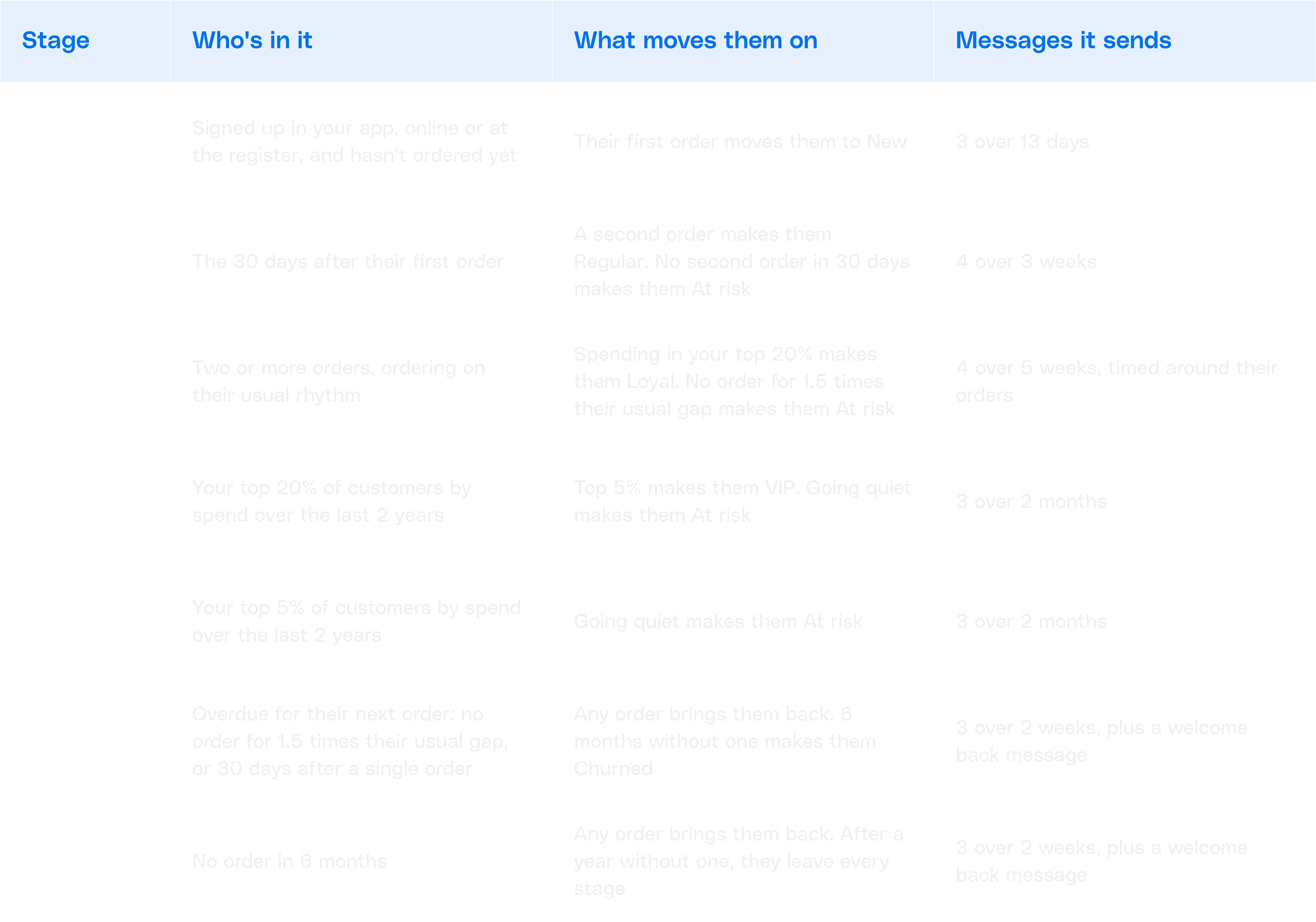
Customers move between stages automatically, based on their orders in store and online.
Offers and coupons
Can I add an offer to a message?
Yes. Open a message step and choose one of your coupons in the Offer field. Create the coupon first under Marketing → Coupons.
Which kind of coupon should I use?
It depends on where your customers order. Per Diem coupons can be redeemed in your app and on web ordering. They can't be redeemed at your Square register yet, so customers who order in store need a Square coupon instead.
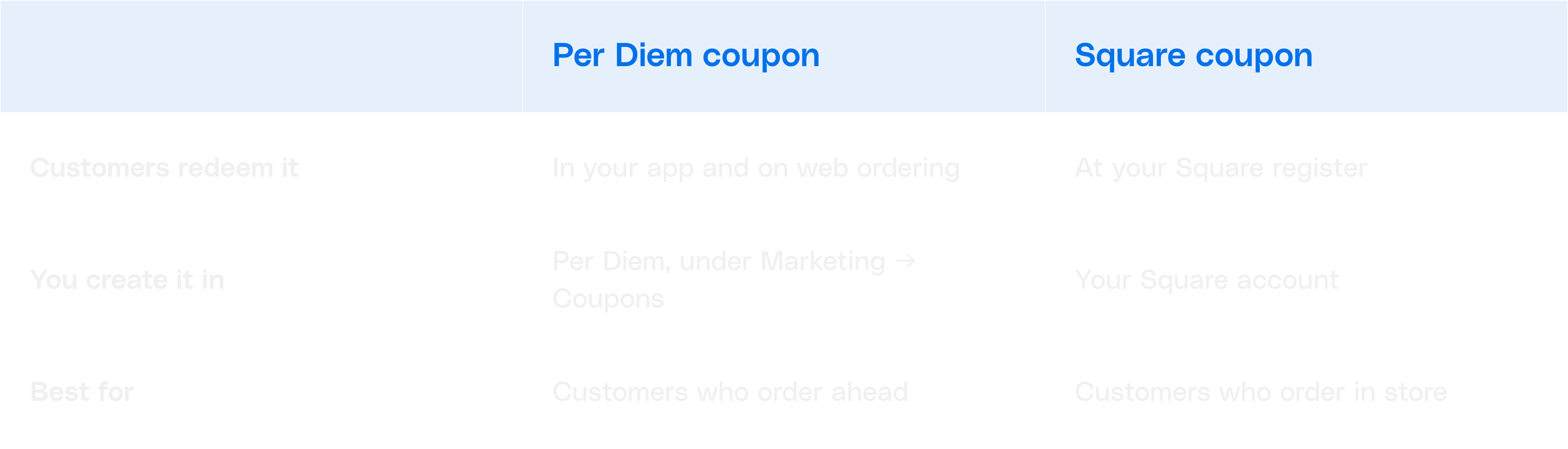
- Most of your orders come through your app or website: use a Per Diem coupon.
- Most of your orders happen in store: use a Square coupon. Your account manager can help you set it up in your sequences.
- A mix of both: use a Square coupon for offers aimed at in-store customers, such as your At risk and Churned messages.
We're working on making Per Diem coupons redeemable at the Square register, and we'll update this guide when that's ready.
When should I include an offer?
Save offers for the moments that matter most, like bringing back At risk and Churned customers or thanking your Loyal and VIP customers. If every message has a discount, customers learn to wait for one before they order. Change your offer from time to time to keep it feeling special.
How sequences send messages
Will my customers get too many messages?
No. Each customer gets at most one message a day across all your sequences. If a message would come sooner, it waits until the next day.
What times do messages go out?
Daytime only, in the customer's own time zone:
- Push notifications: 8 AM to 8 PM
- Texts: 9 AM to 8 PM
- Emails: 7 AM to 9 PM
What happens if a message can't be sent?
It's skipped, and the customer moves on to the next step. For example, a push notification to a customer who doesn't have your app, or an email step with no template.
Is there a message when a customer moves up?
Yes. A sequence can send one more message when an order moves a customer up: back from At risk or Churned, from New to Regular, or up to Loyal or VIP. It goes out even after the sequence's other messages have ended.
What happens when a sequence ends?
The customer hears nothing more from that sequence until their stage changes. For example, a VIP's last default message goes out on day 62. To stay in touch in between:
- Add more steps to the sequence with the + button.
- Send a monthly campaign to your Loyal and VIP customers, like a new menu item or a members-only offer, from Marketing → Emails, Marketing → SMS or Marketing → Push notifications.
Still have questions?Contact us
Ask anything or just say hi