


























How to Set Up Dietary Profiles, Allergens, and Nutrition Information
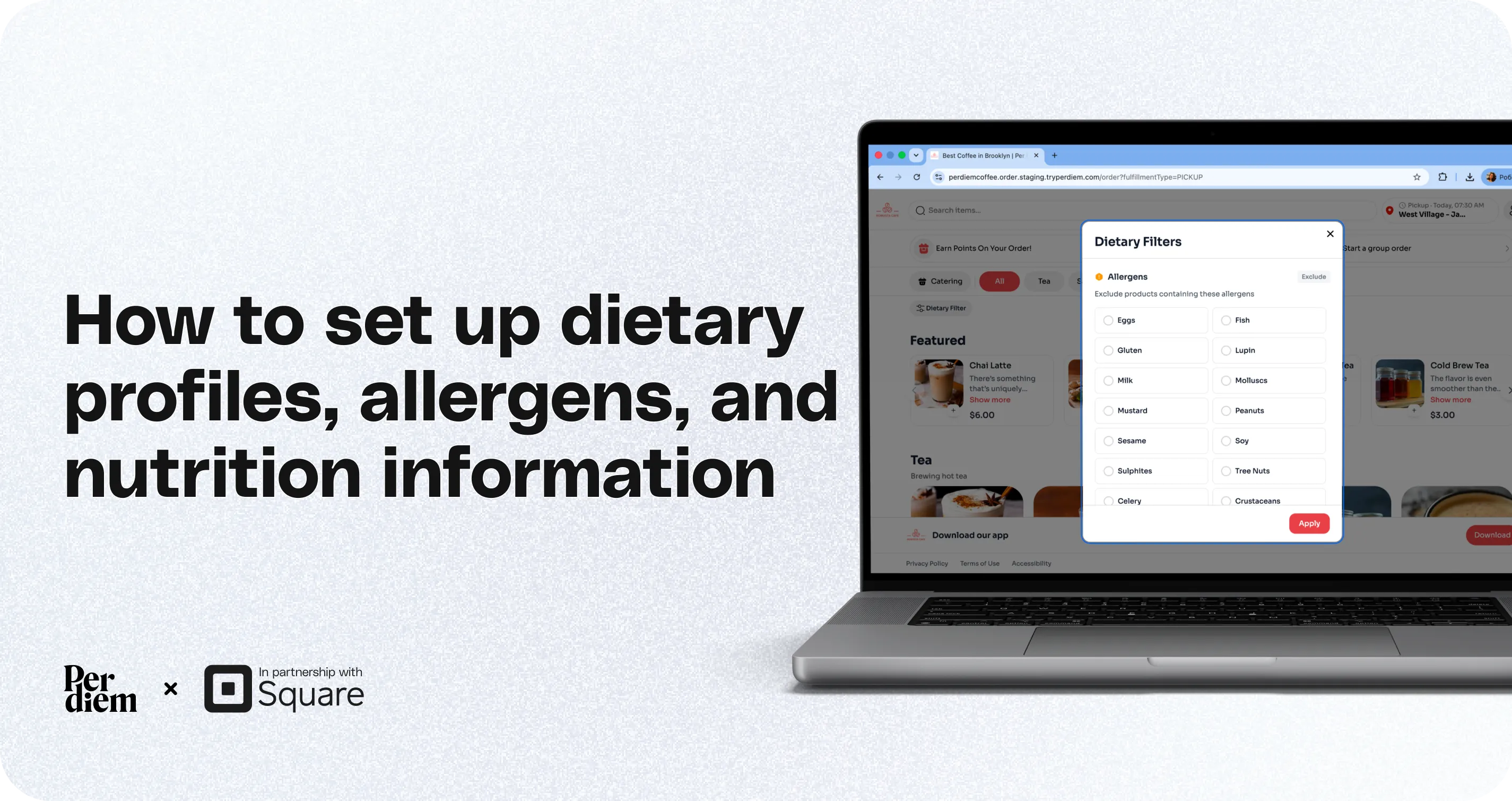
Per Diem's Dietary & Nutrition feature helps your customers make informed ordering decisions by displaying dietary preferences, allergen information, certifications, ingredients, and spice levels across your mobile app and web ordering.
- Enable the Dietary feature
- Open the Dietary tab
- Add dietary information to your menu items
- Customize variations (optional)
- Save your changes
Still require support?
Contact support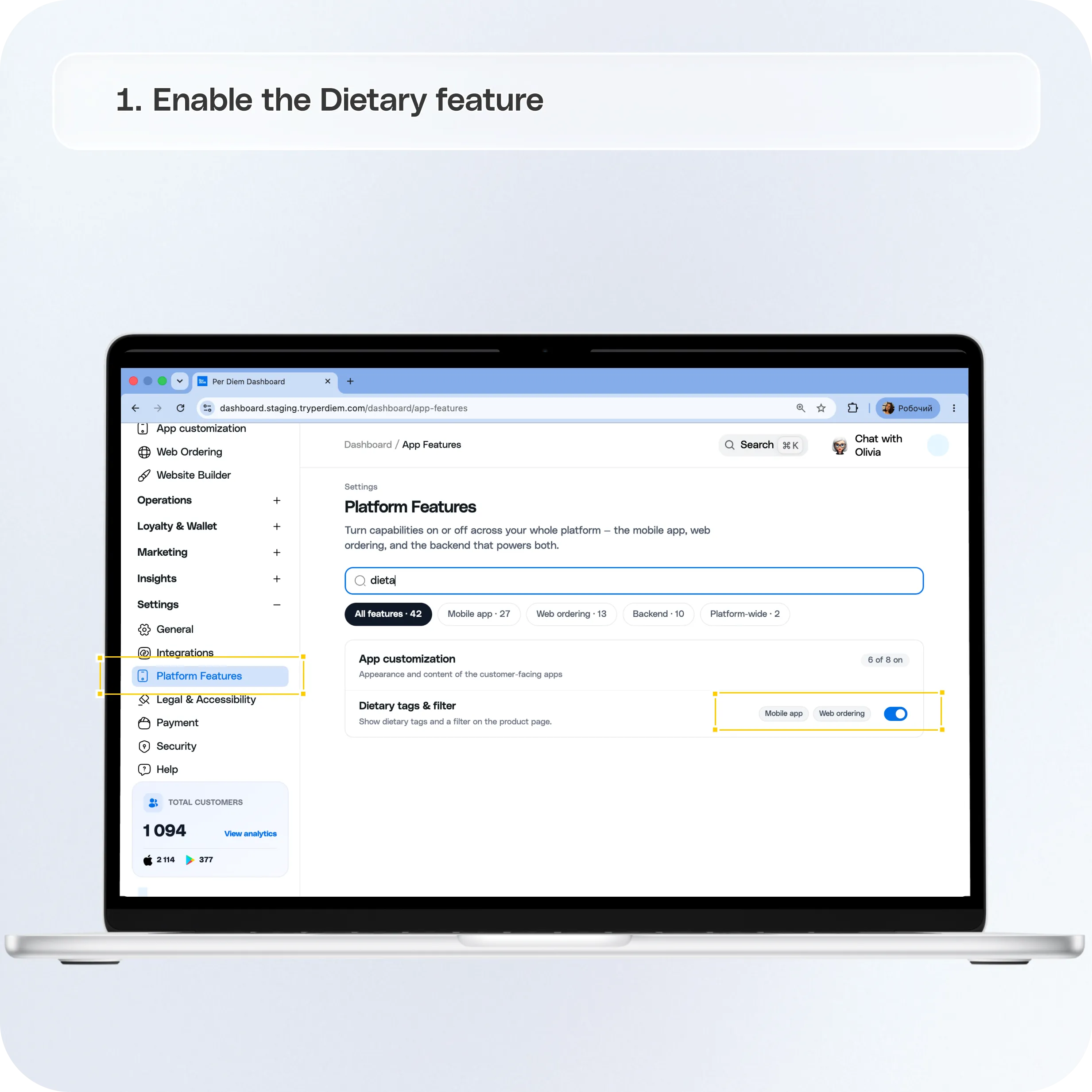
Once configured, customers can create their own dietary profile, filter your menu based on their preferences, and receive warnings for items that don't match their dietary needs.
This guide walks you through enabling and configuring the feature.
Before you begin
The Dietary & Nutrition feature must first be enabled for your account.
If you don't see the Dietary tab in your dashboard, contact the Per Diem team to have the feature enabled.
Step 1: Enable the Dietary feature
Navigate to:
Merchant Dashboard → Settings → Platform Features
Scroll to the bottom of the page and enable the Dietary Tags & Filter feature.
Once enabled, the Dietary tab will become available in your dashboard.
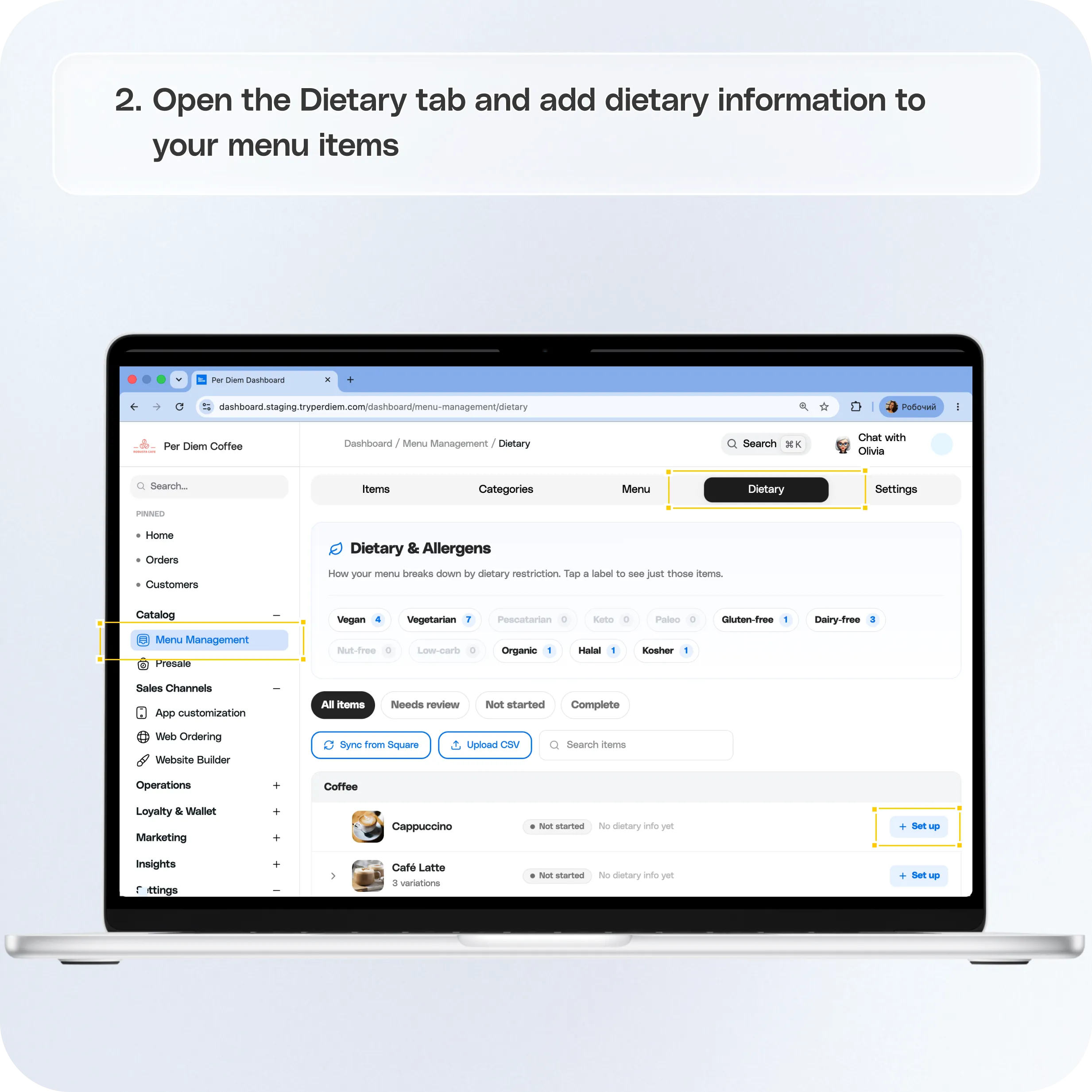
Step 2: Open the Dietary tab
Navigate to:
Merchant Dashboard → Menu Management → Dietary
From here, you can manage dietary information for your menu items.
Step 3: Add dietary information to your menu items
Open any menu item to access the Dietary & Allergens section.
Here you can configure all of the dietary information customers will see.
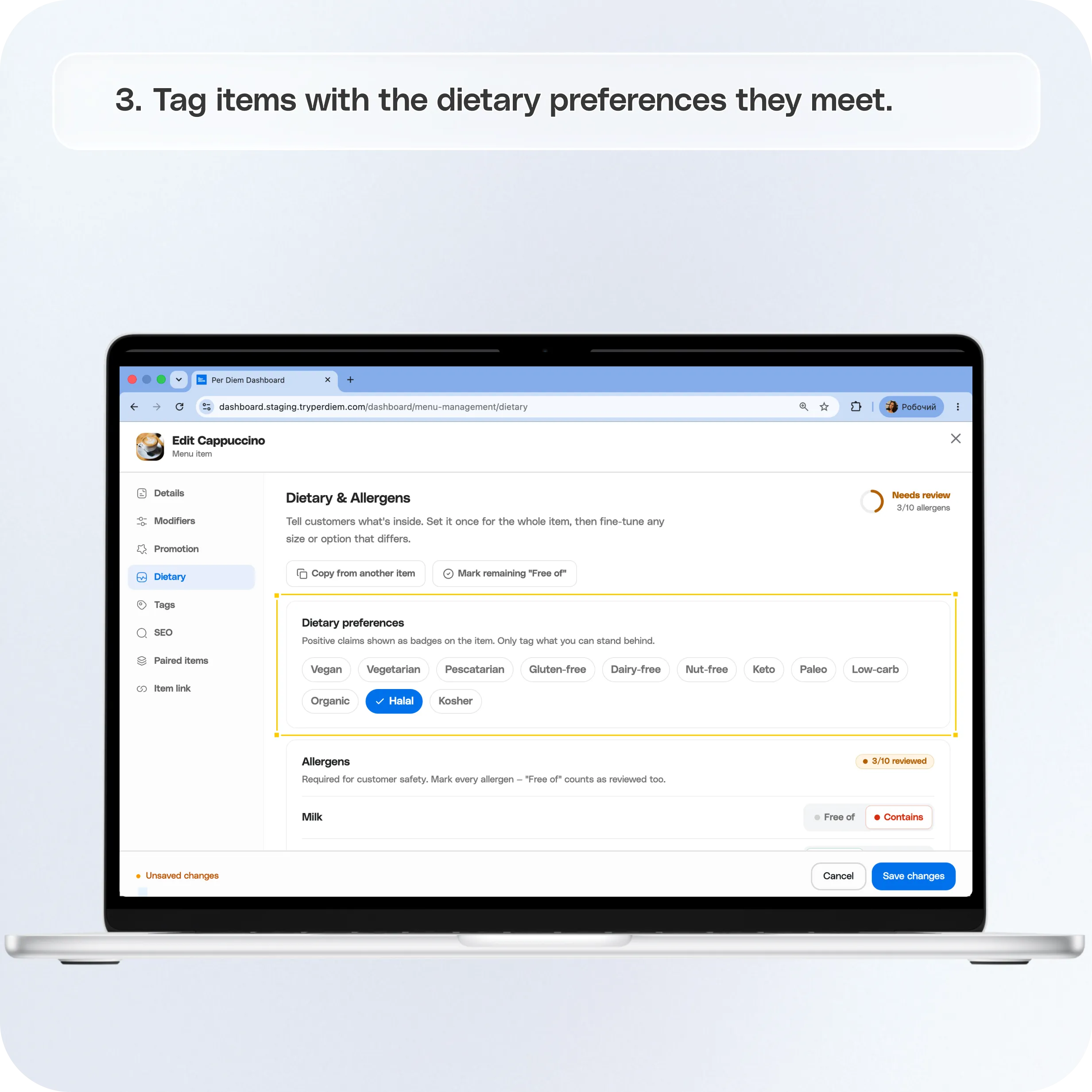
Dietary Preferences
Tag items with the dietary preferences they meet.
Available options include:
- Vegan
- Vegetarian
- Pescatarian
- Keto
- Paleo
- Gluten Free
- Dairy Free
- Nut Free
- Low Carb
- Organic
- Halal
- Kosher
These tags appear as dietary badges on your menu and help customers quickly identify suitable items.
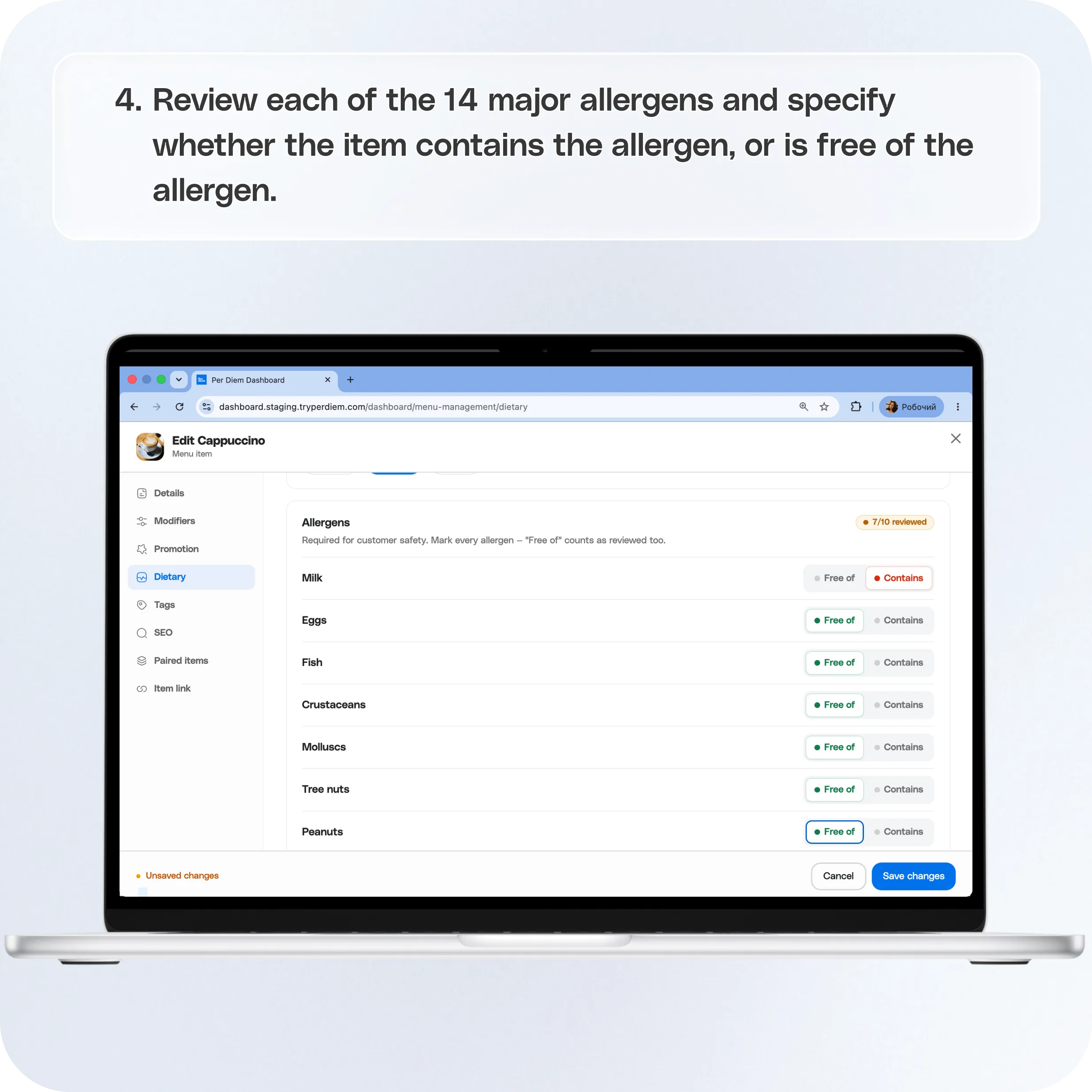
Allergens
Review each of the 14 major allergens and specify whether the item:
- Contains the allergen, or
- Is Free of the allergen.
Providing accurate allergen information helps customers avoid ingredients that may cause allergic reactions.
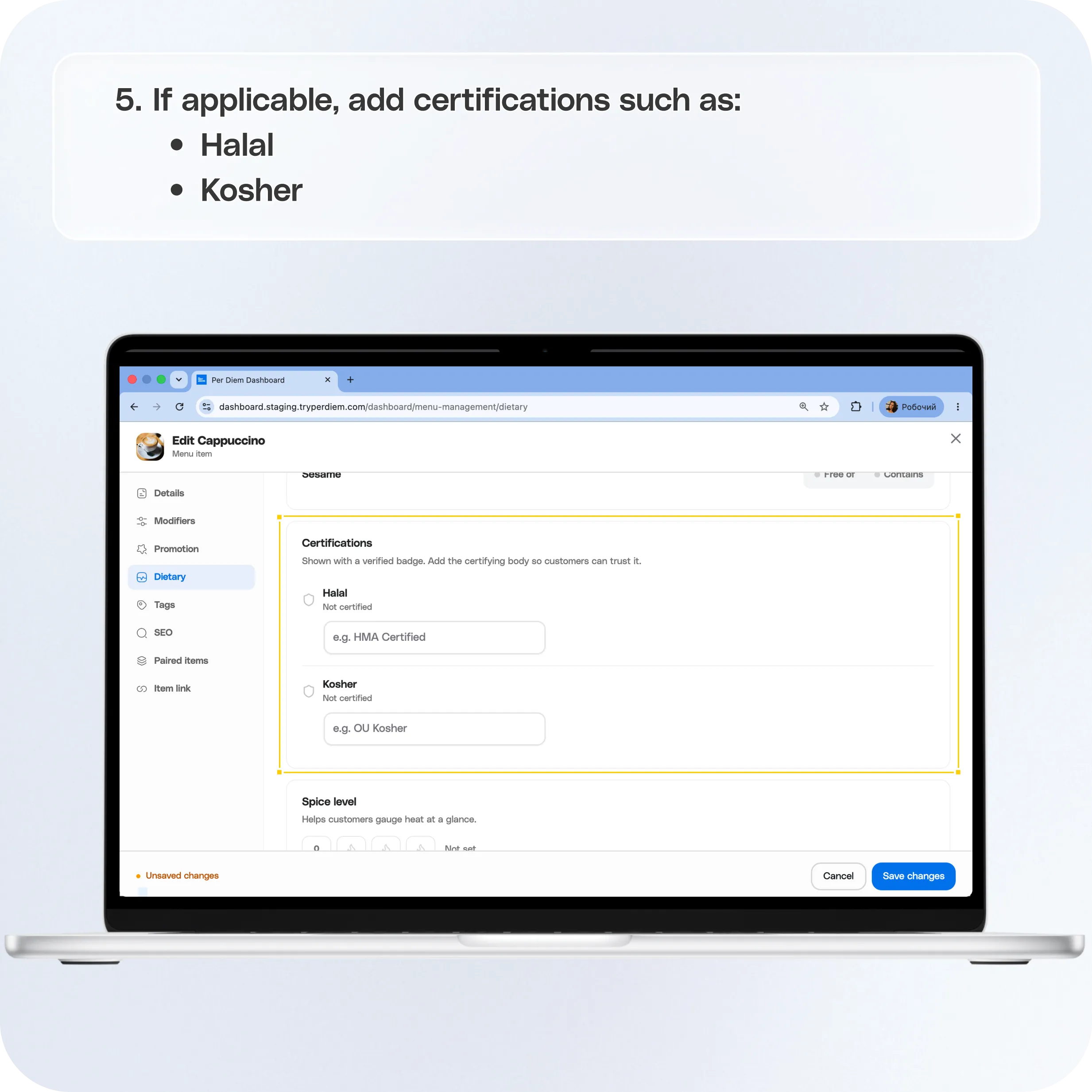
Certifications
If applicable, add certifications such as:
- Halal
- Kosher
You can also include the certifying organization, such as the issuing certification body.
Spice Level
Assign a spice level to help customers understand how spicy an item is before ordering.
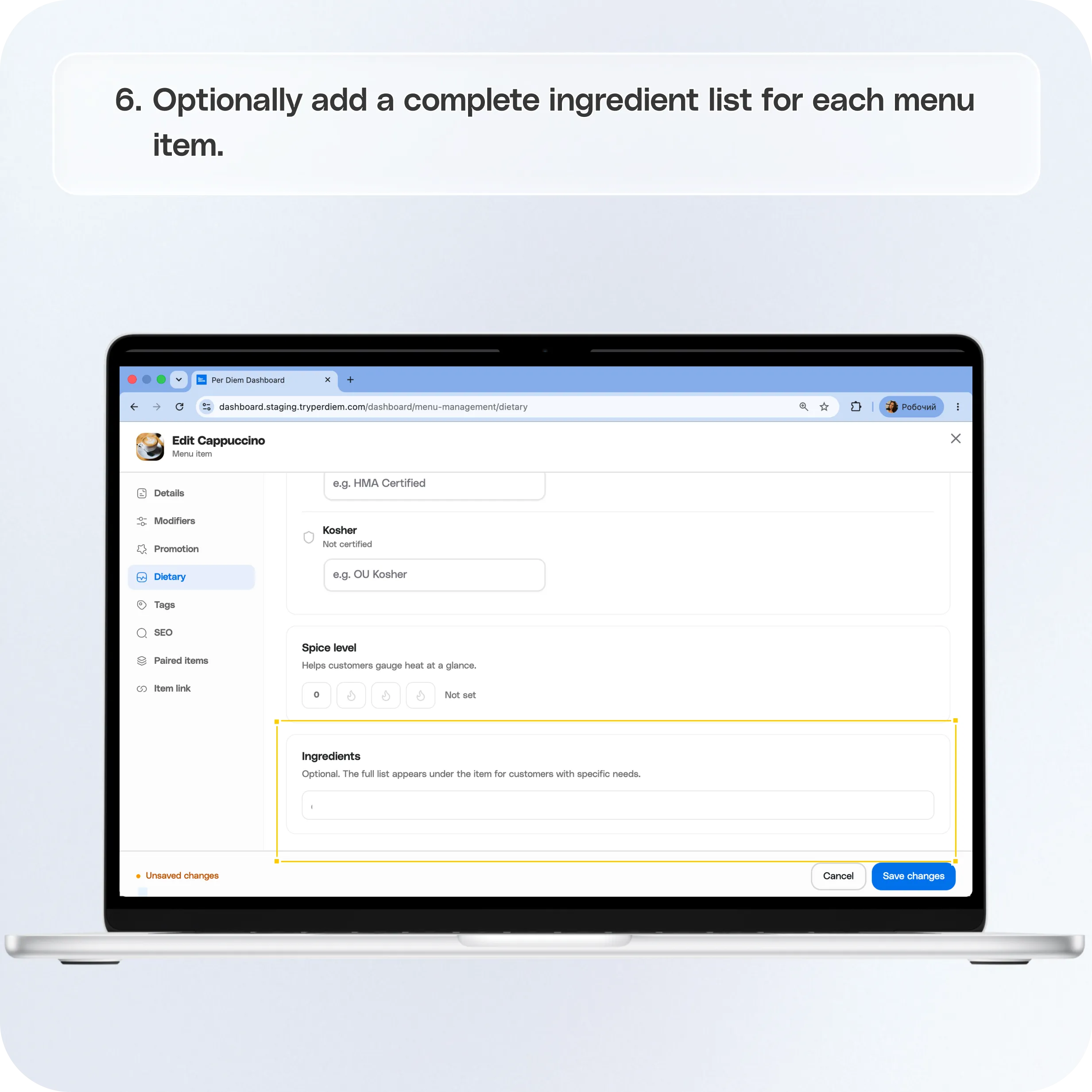
Ingredients
Optionally add a complete ingredient list for each menu item.
While not required, ingredient lists provide additional transparency for customers with dietary restrictions or ingredient preferences.
Step 4: Customize variations (optional)
Dietary information can be configured for the entire menu item or customized for individual variations.
For example, if one size or option has different ingredients or allergens than the default item, you can update that variation separately without affecting the rest of the item.
Step 5: Speed up menu setup
Per Diem includes several tools to help you configure dietary information more efficiently.
You can:
- Copy dietary information from another menu item.
- Use Mark Remaining "Free of" to complete allergen information quickly.
- Import dietary information in bulk using a CSV file from the Dietary tab.
These tools make it easy to update large menus without editing every item individually.
Step 6: Save your changes
After updating a menu item's dietary information, save your changes.
Repeat these steps for any additional menu items you want to configure.
What customers will see
Once your dietary information has been added, customers automatically gain access to these features across both Web Ordering and the Per Diem Mobile App.
Customers can:
- View dietary badges on menu items.
- Create a personal dietary profile based on their dietary preferences.
- Save allergen avoidances and specify severity levels.
- Add ingredient dislikes and personal notes.
- Filter menus based on their dietary profile.
- Hide items that contain ingredients or allergens they want to avoid.
- See warning badges when an item conflicts with their saved profile.
- View detailed allergen and ingredient information on each menu item.
No additional setup is required once your menu items have been configured.
Using Square with Dietary Information
No additional configuration is required in Square.
The Dietary & Nutrition feature is managed entirely within the Per Diem dashboard.
If your Square catalog already includes dietary or allergen information under Food & Beverage Details, Per Diem will automatically import that information during your Square catalog sync.
Still have questions?Contact us
Ask anything or just say hi