


























How to Enable Square Menu Integration in Per Diem
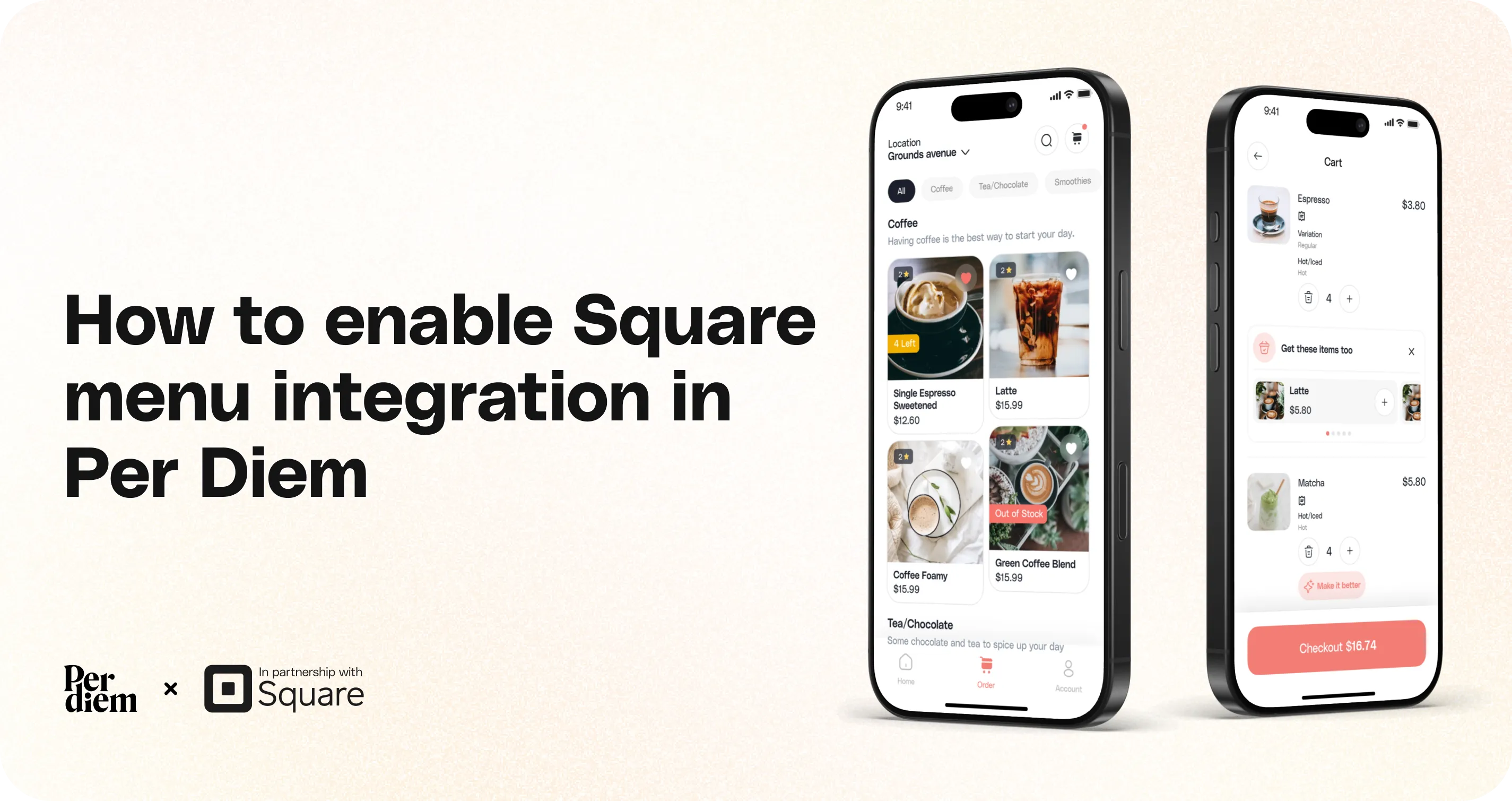
Per Diem now supports Square menu integration so your menu, categories, and items are automatically synced from Square to your mobile ordering app.
Still require support?
Contact support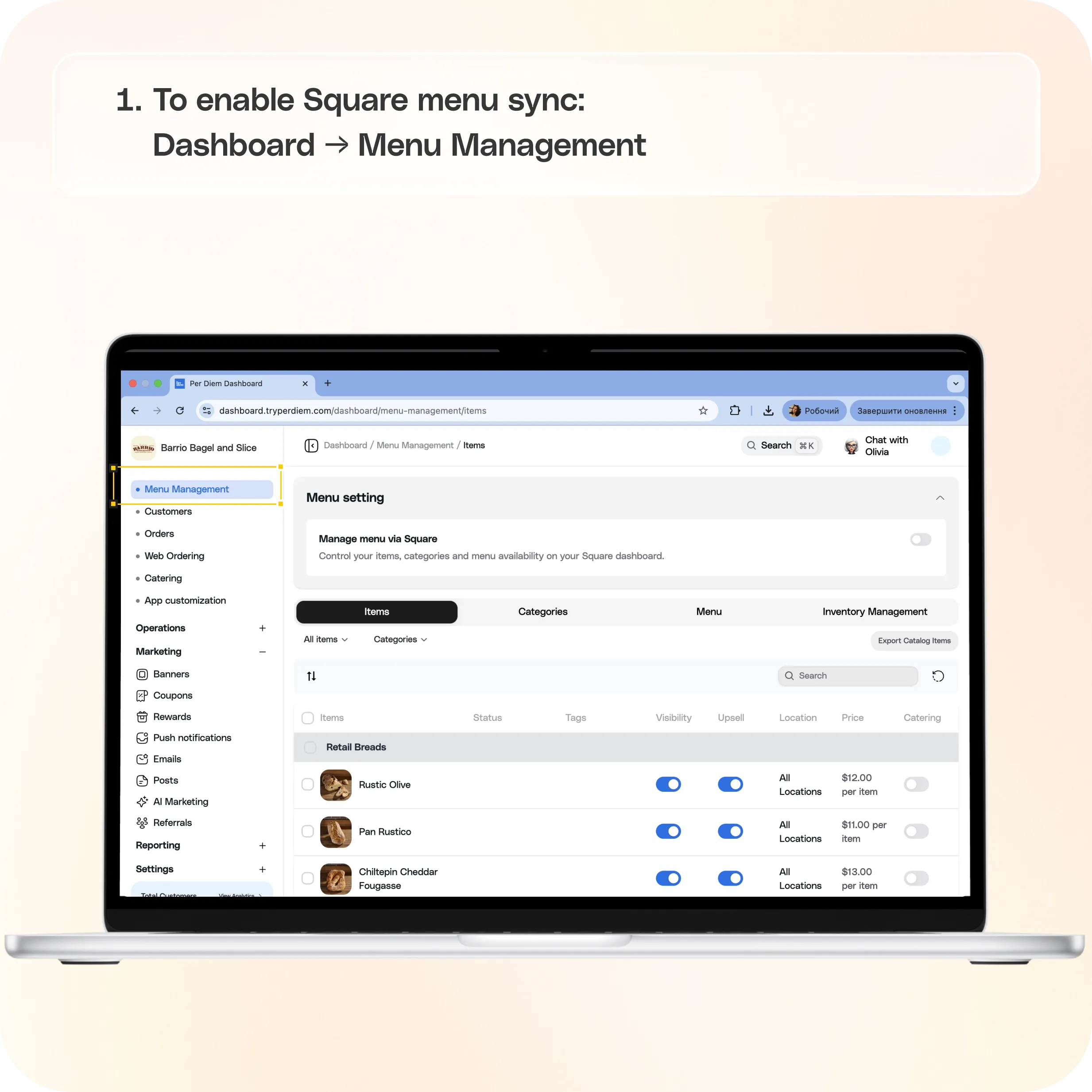
With Square as your menu source, you can manage your menu in one place while ensuring your app always reflects the latest updates. This removes the need to manually update items in the dashboard and keeps your menu consistent across platforms.
Before You Start
Make sure your menu is fully set up in Square, including:
- Categories
- Items
- Modifiers
- Pricing
Your app will reflect the structure and data from Square once the integration is enabled.
Where to Find It
To enable Square menu sync:**
Dashboard → Menu Management**
How to Enable Square Menu Integration
- Go to Menu Management from the left-hand menu
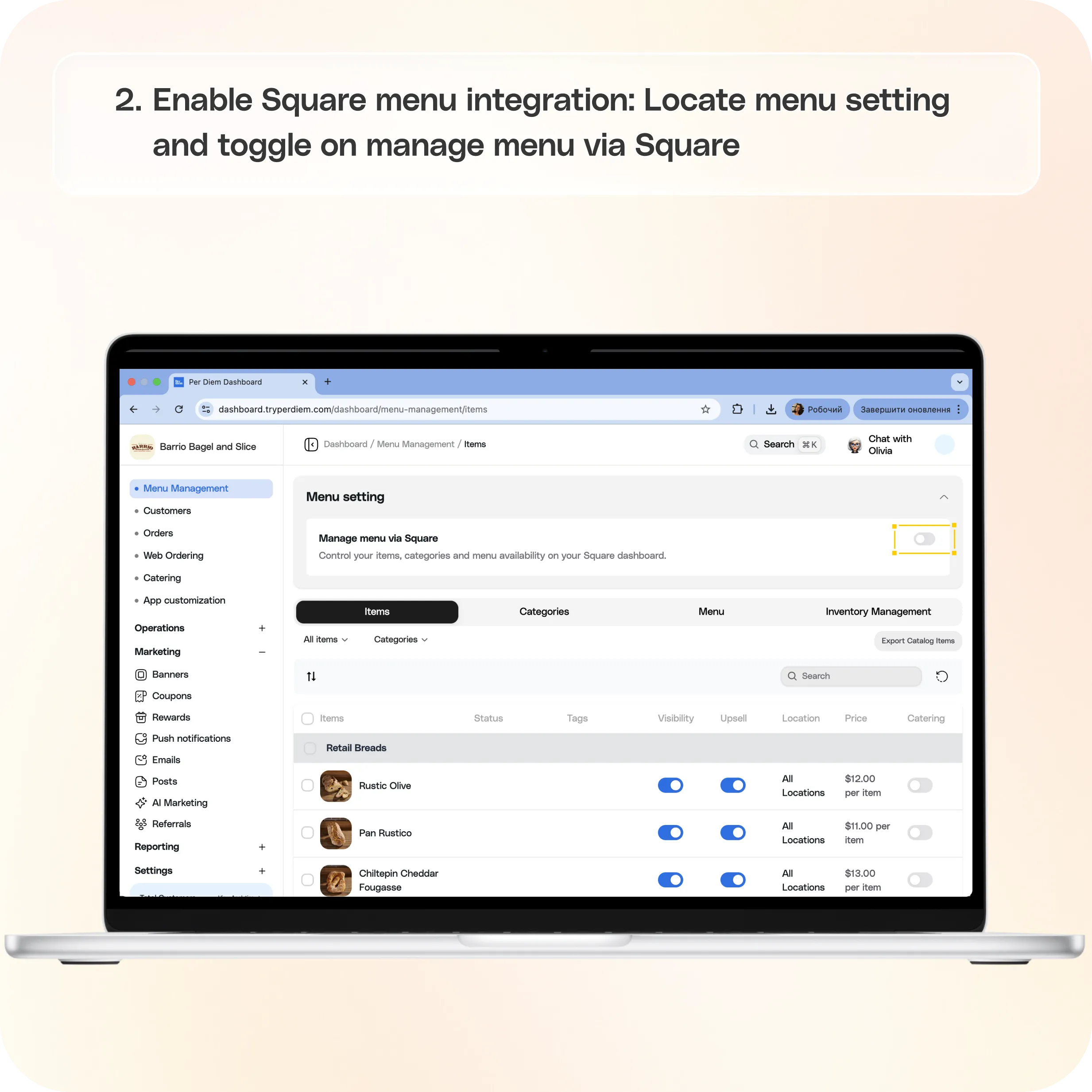
- Locate Menu Setting
- Toggle ON Manage menu via Square
Once enabled, your menu will automatically sync from Square.
How It Works
After enabling this setting:
- Categories and items are synced directly from Square
- Your menu structure reflects your setup in Square
- Menu updates should be made in Square moving forward
This ensures your app always stays up to date without needing to manually update items in the dashboard.
Switching Menu Management
You can switch between:
- Internal menu management
- Square-managed menu
If you switch back, you can resume managing your menu directly from the dashboard.
Still have questions?Contact us
Ask anything or just say hi