

























Help center
How to enable curbside pickup
Seamlessly enable curbside pickup for your customers, offering them more flexibility and convenience.
Instructions
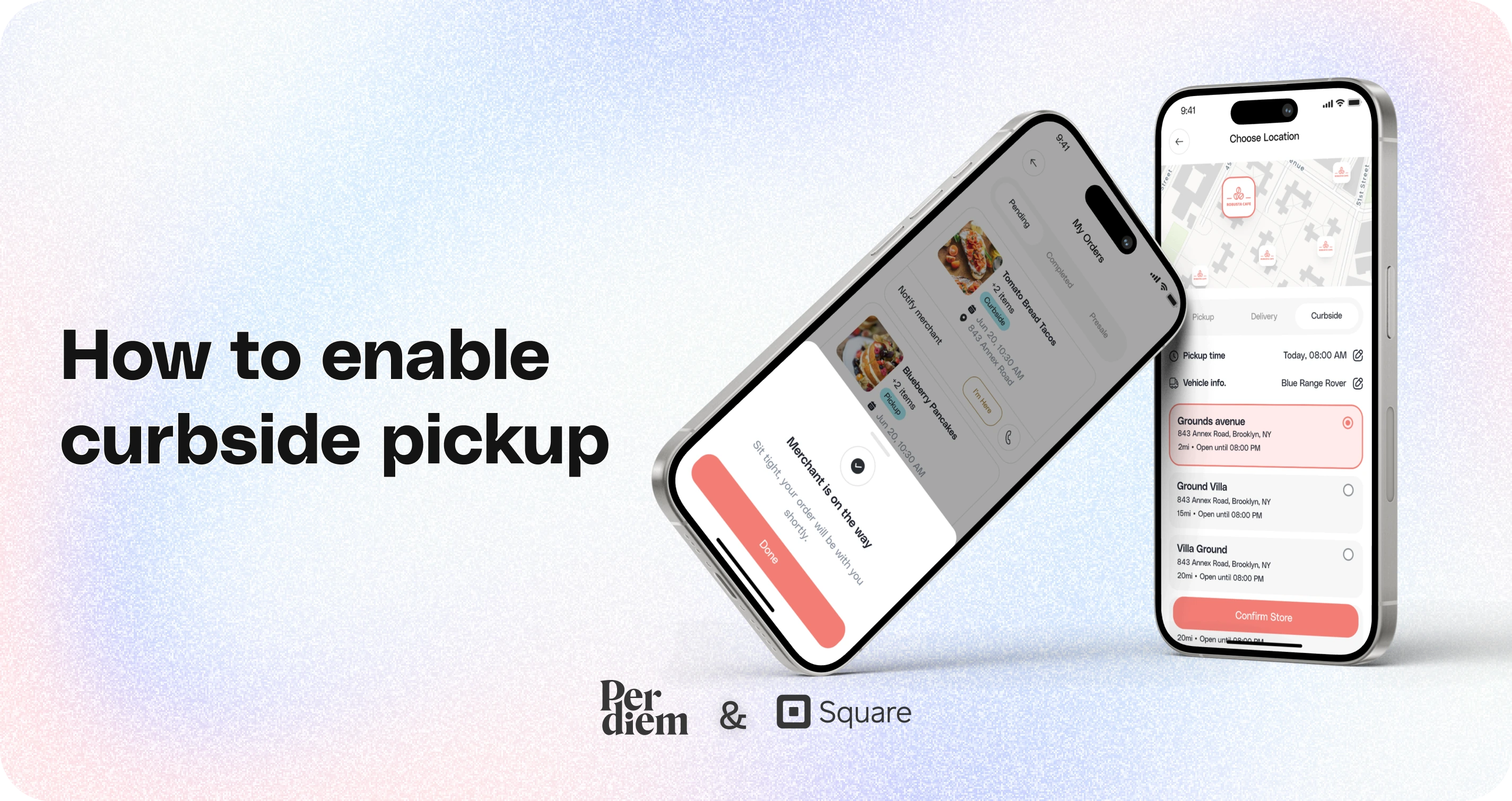
- Log in to your Per Diem merchant dashboard and navigate to the Operations tab in the side menu.
- Under the Operations menu, go to Locations.
- Select the specific location where you want to enable curbside pickup for customers.
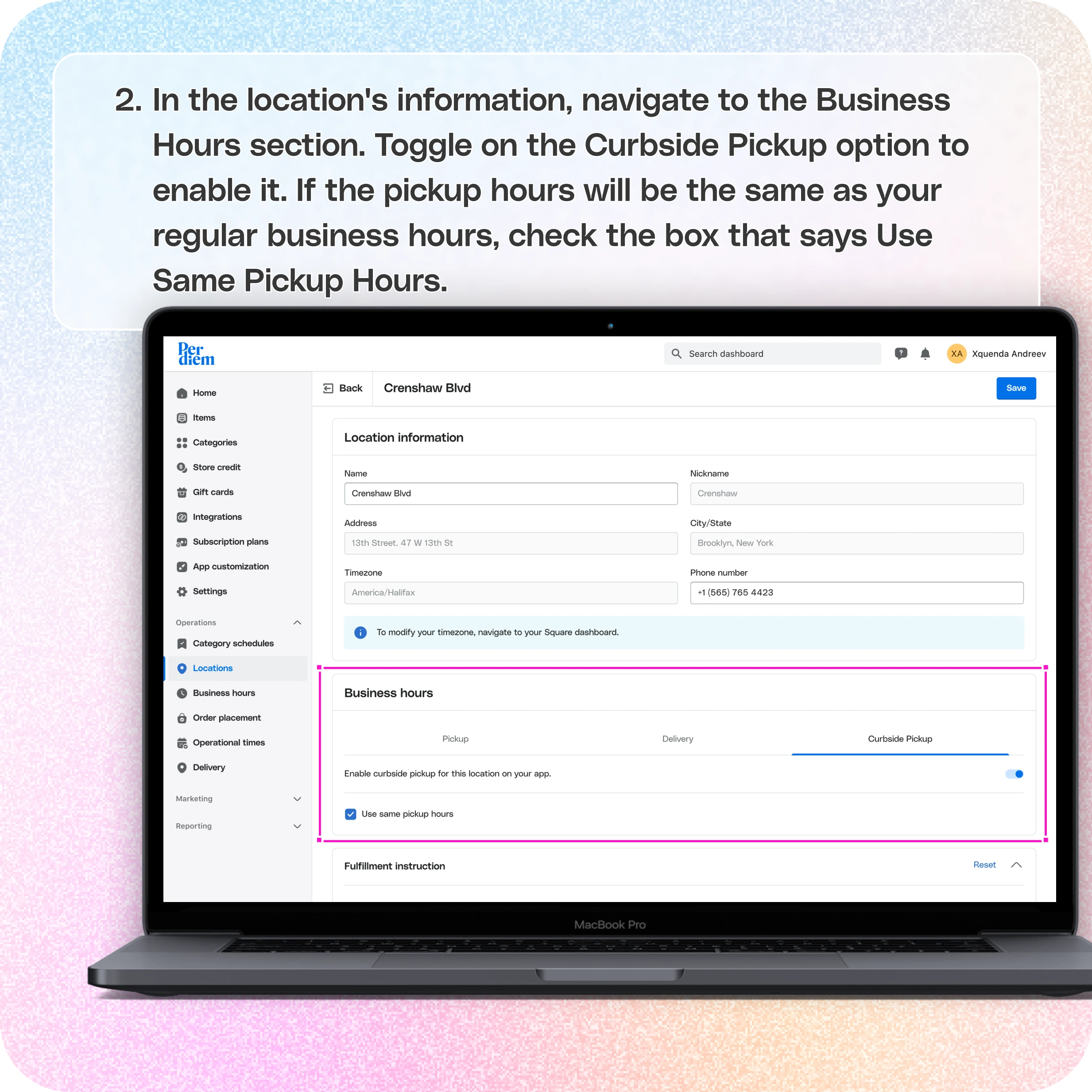
- In the location's information, navigate to the Business Hours section.
- Toggle on the Curbside Pickup option to enable it.
- If the pickup hours will be the same as your regular business hours, check the box that says Use Same Pickup Hours.
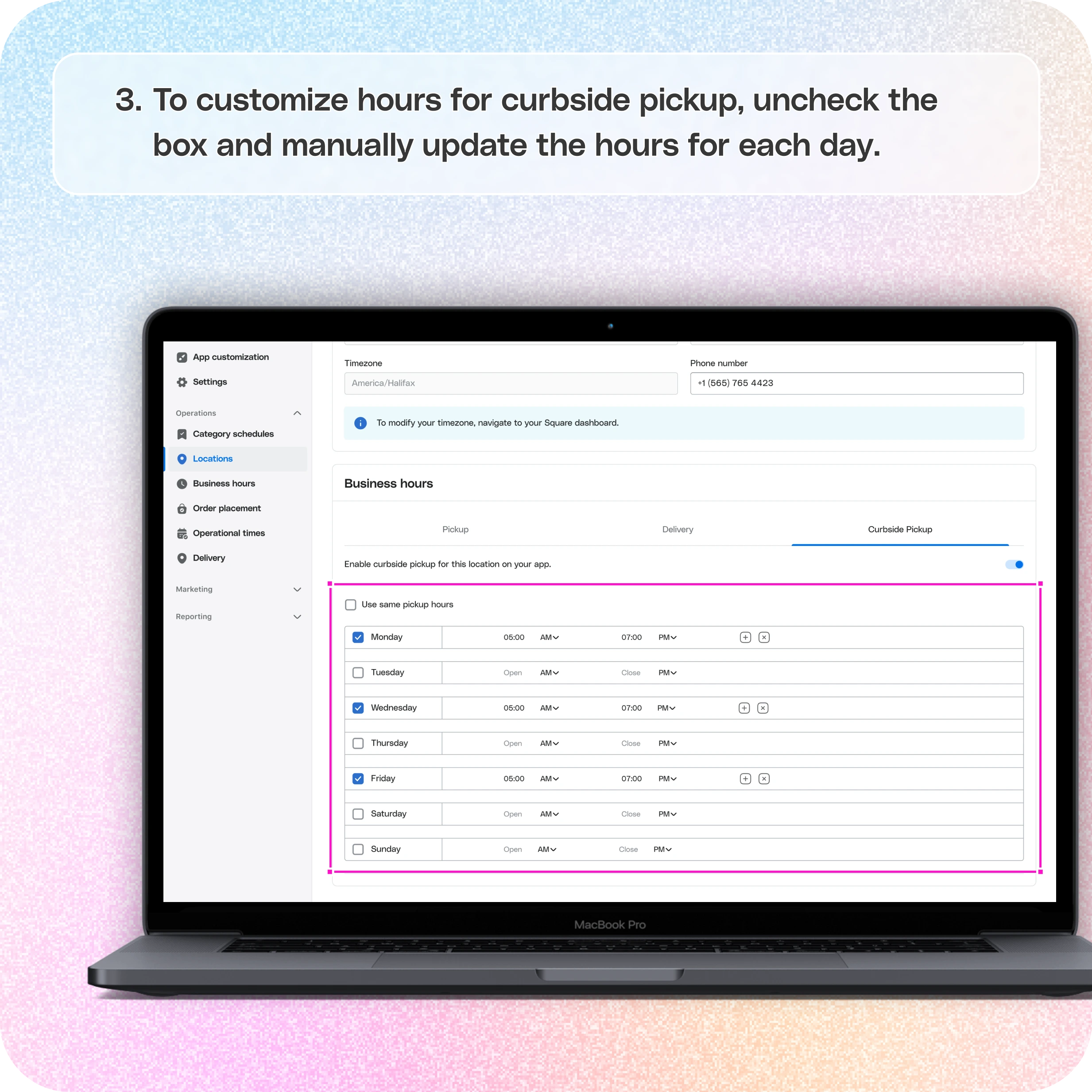
- To customize hours for curbside pickup, uncheck the box and manually update the hours for each day.
- Set Fulfillment Instructions. Add any custom instructions to guide customers—for example, "Park in the front lot and tap 'I’m here' in the app."
Still require support?
Contact support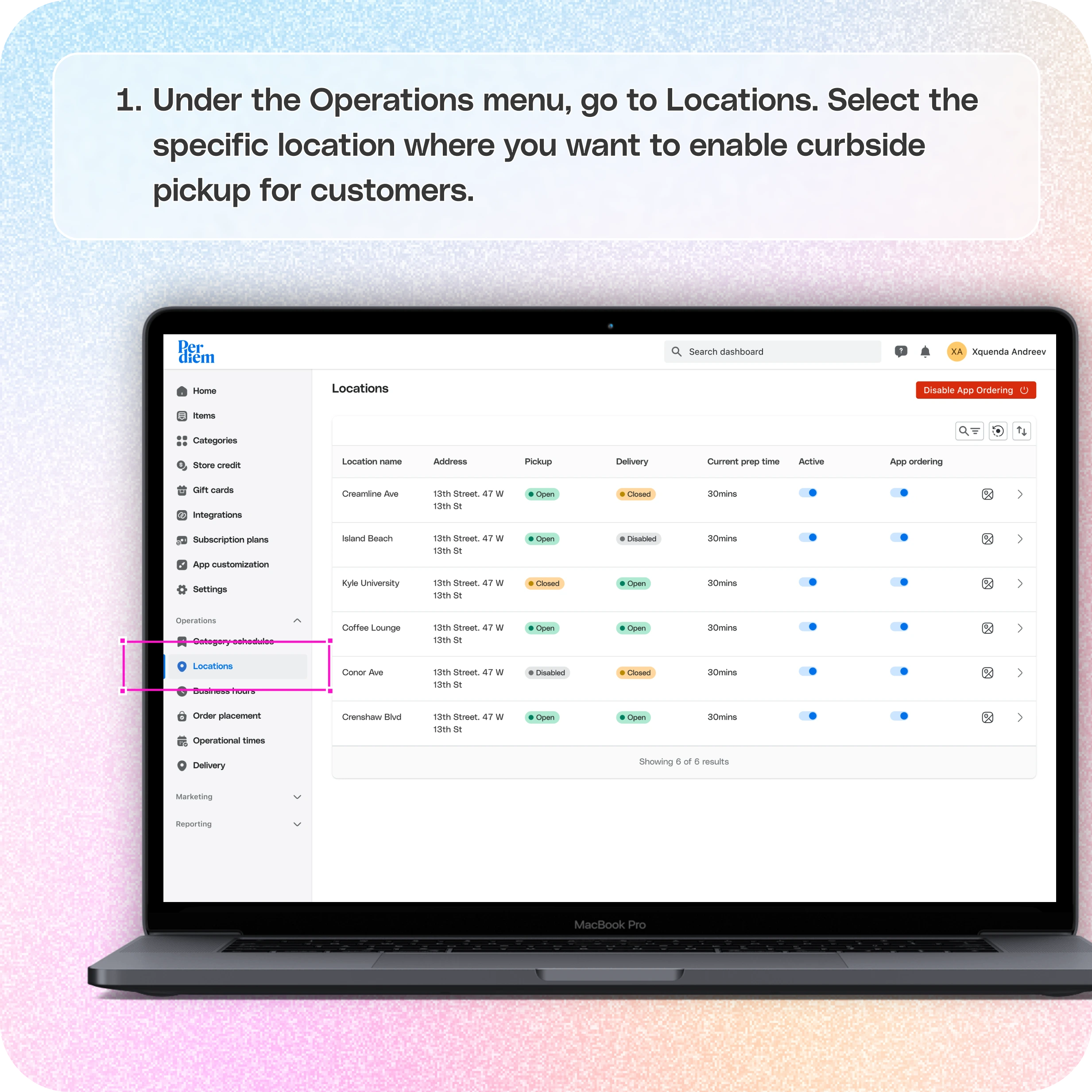
1. Enable Curbside Pickup
- Log in to your Per Diem merchant dashboard
- Go to Operations > Locations
- Choose the location where you want to offer curbside pickup
- Scroll to the Business Hours section
- Click the Curbside Pickup tab and turn it on
- Set your curbside pickup hours
2. Set Fulfillment Instructions
- Still in Operations > Locations, scroll to Fulfillment Instructions
- Add any custom instructions to guide customers—for example, "Park in the front lot and tap 'I’m here' in the app."
3. Customer Vehicle Details
- On the Curbside Pickup tab in the store’s app, customers can fill in:
- Vehicle Info
- Color
- Car Model
- License Plate (optional)
This info will be shown to you when they arrive.
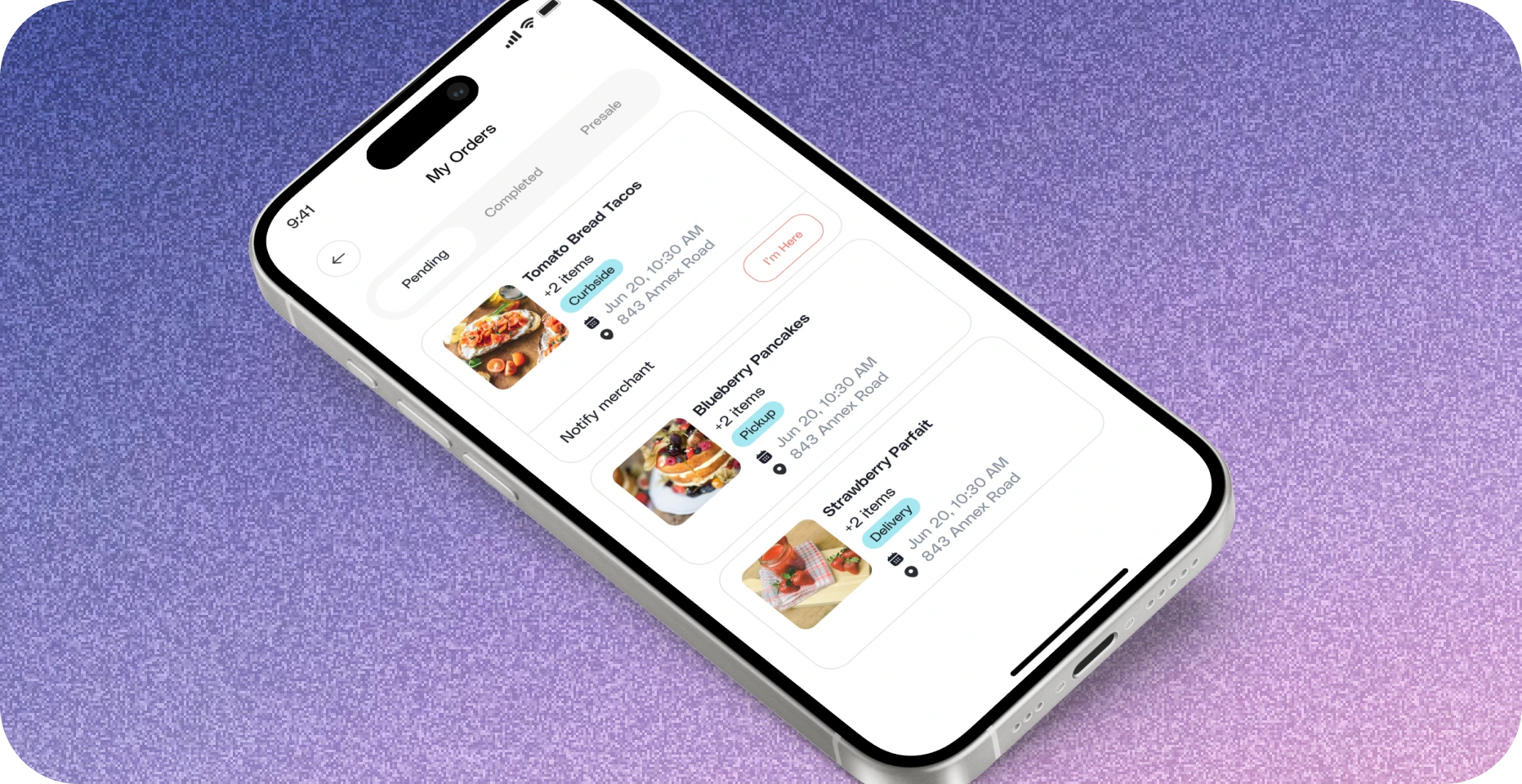
4. How Customers Use It
- Customers place an order and select Curbside Pickup at checkout
- Once they arrive, they can go to:
- The Home screen or
- The Orders tab in the app
- Their pending order will be visible
- They press “I’m here” to notify your staff
5. What Happens Next
- After the customer taps “I’m here”, a notification will appear on your POS with their curbside details
- You’ll see the vehicle info and know they’ve arrived
- Important: Be sure you’ve turned on order alerts in Square POS:
- Go to More > Settings > Orders > Alerts & Notifications
6. Optional: Call the Store
- Customers can also tap the phone icon next to their curbside order to call the store directly if needed.
By following these steps, you can seamlessly enable curbside pickup for your customers, offering them more flexibility and convenience.
Still have questions?Contact us
Ask anything or just say hi